Twilio Verification SDK for Android - Integration guide
The following is the high level overview of how the SDK works to simplify the process of validating a phone number within an application running on Android.
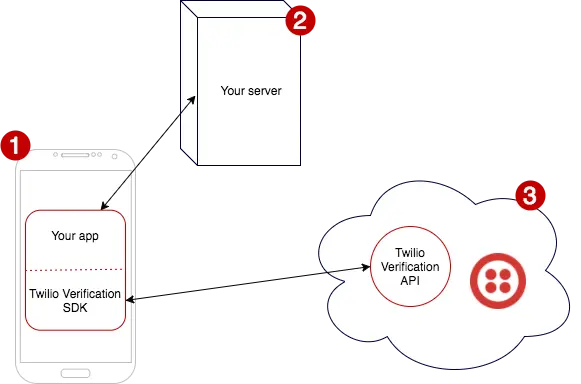
- A mobile application with the SDK installed.
- A backend service to receive phone numbers from the App and produce a signed JWT
- Have access to Twilio Verification API in the backend, have your mobile application's hash configured within Twilio

- App requests to the backend to sign the phone number.
- Backend transforms phone number into a JWT. The JWT is the phone number, signed with the customer's AUTHY_API_KEY and an expiration time
- Backend sends JWT to Android application.
- The Android app, with the JWT, starts the verification with the SDK.
- Twilio sends a formatted SMS (including a prefix and a hash) to the device.
- Twilio Verification SDK reads the SMS in the background and notifies the app. No SMS_READ permission is needed. The app with the provided result will have a verification token that is proof enough that the phone is valid.
This guide implements a sample app from scratch, integrated with the Twilio Verification SDK and supported by a sample token server.
A more complete sample app is also available.
The code can be directly checked out here: Sample app - Token Server
- Integrating Twilio Verification SDK using the sample backend
- Integrating the Twilio Verification SDK with your own backend
- Register your app in Twilio Verification API
- SDK Reference
Once the SDK is integrated in your app and your backend is capable of generating the JWT, you're good to go.
You can also make use of the Google's sign-in hint, which auto-fills connected phone numbers for the user and reduce the friction even further. Check out the official documentation or ask our support team for more information on how to use Google's sign-in hint.
The Twilio Verification Sample App implements this feature and is available on GitHub.