How to Handle SMS Opt-Ins
Collecting opt-ins for your SMS recipients is critical to responsible communications. It's also part of Twilio's Acceptable Use Policy. Twilio for Salesforce facilitates opt-in collection and tracking through two custom objects: Opt_In_Keyword__c and Opt_In__c.
Opt_In_Keyword__c allows you to define an opt-in keyword such as "volunteer". When a user sends an SMS message that matches this keyword, an Opt_In__c record will be created with their phone number, opt-in status, message text, message SID, the keyword, and a lookup to the contact or lead associated with the phone number.
Info
If a recipient changes their phone number, they will need to opt-in again. If the Mobile Phone field is updated, the opt-in status will be set to inactive. Additionally, if a user replies to your message with an industry-standard block word like STOP, the opt-in status will be set to inactive.
Opt_In_Keyword__c allows you to associate a keyword with a campaign. When a keyword is associated with a campaign, recipients will not be messaged unless they have an opt-in for that specific keyword. You can create an opt-in keyword by using the Salesforce App Launcher to go to the Opt-in Keywords page.
Info
Choose an opt-in keyword that someone isn't likely to send accidentally. For example, "Yes" would be a poor keyword choice, while "donate2022" might be a much better choice.
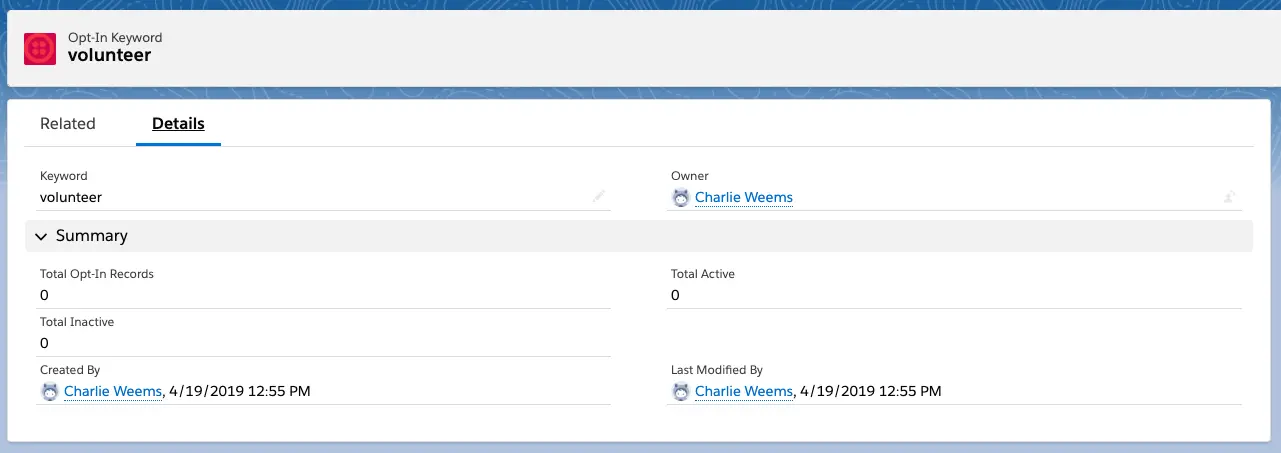
Once you have created a keyword, you'll be able to click into its record:
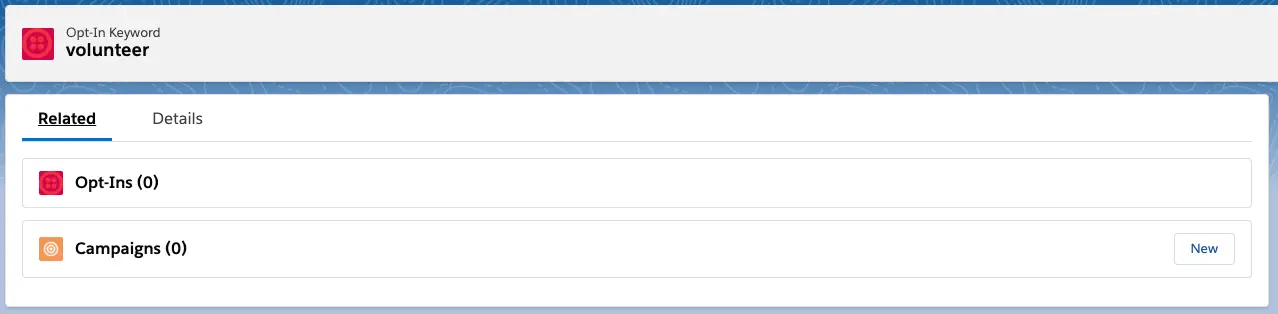
Click on the Related tab and then click on the New button in the Campaigns section:
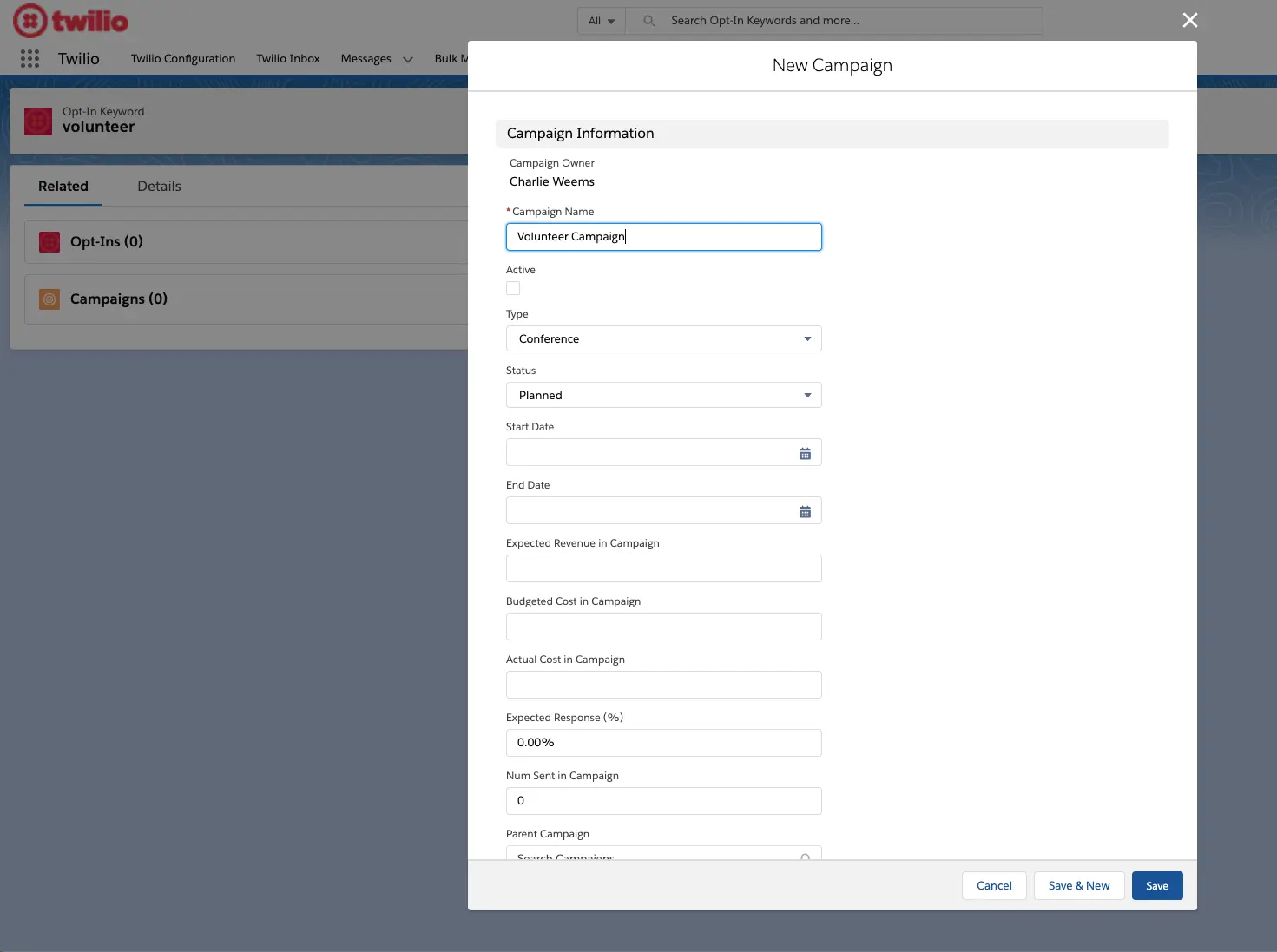
You can now create a campaign that will be associated with the keyword. In this example, we've called it "Volunteer Campaign":
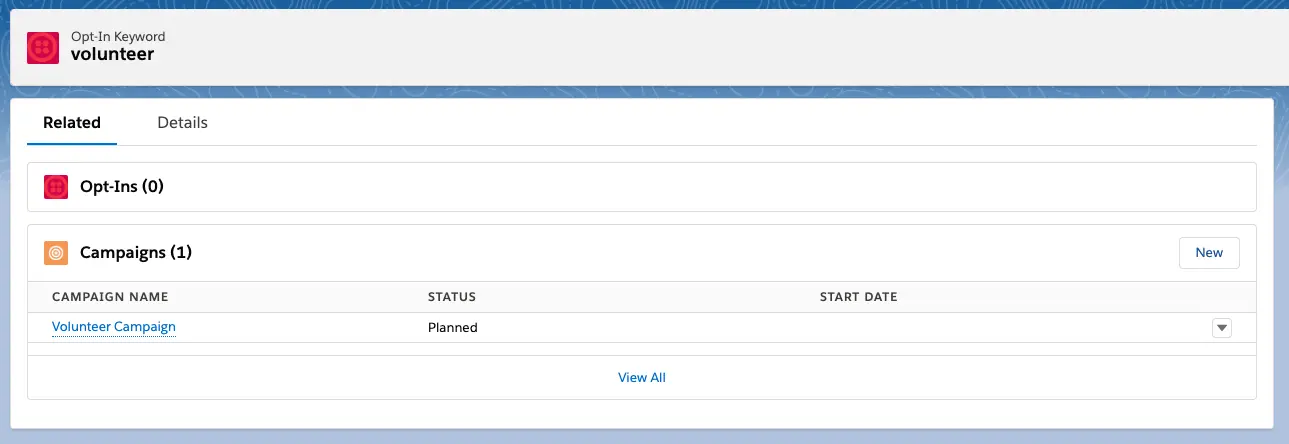
You can now text to your Salesforce phone number with the keyword — in this example, "volunteer". When you send a text, a new Opt-In Record will be created, related to the keyword, and marked active:
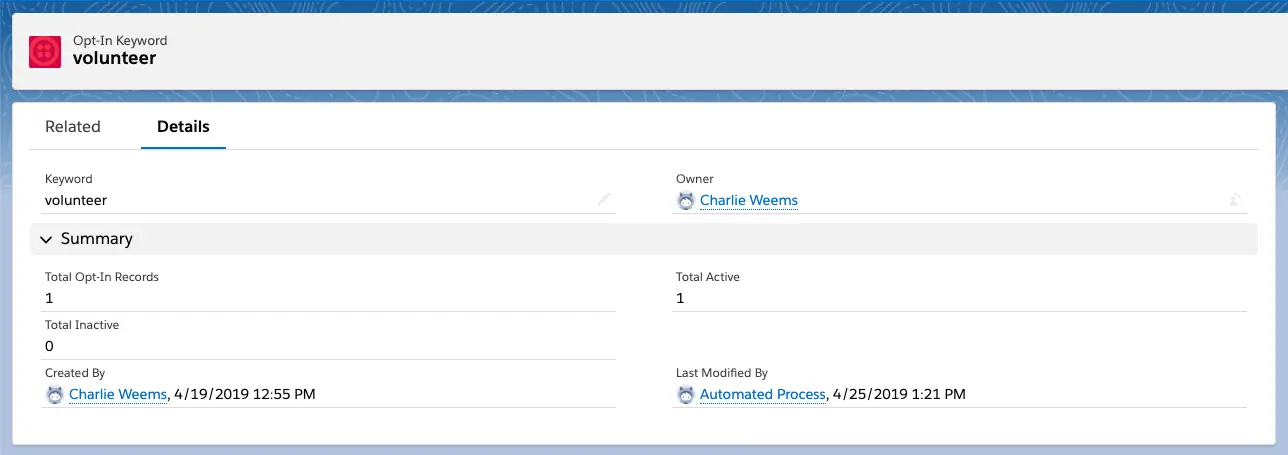
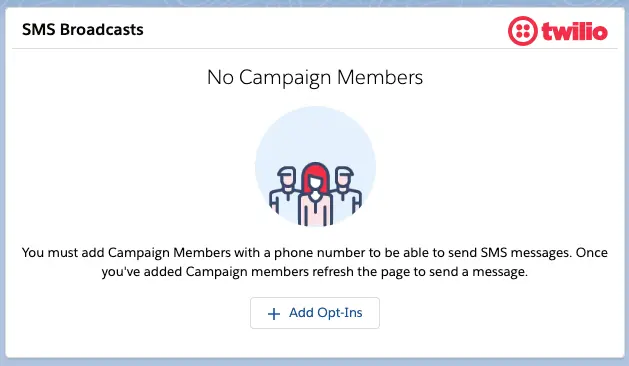
If you click into the campaign, you'll see that you need to add opted-in users to the campaign before you can use the SMS Campaign component:
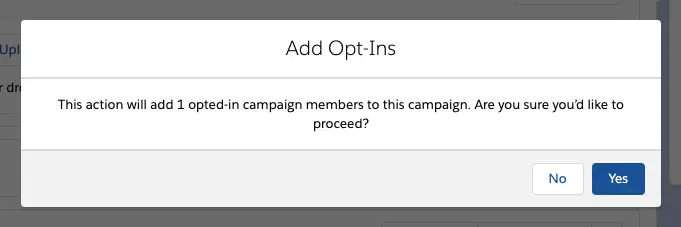
Click the + Add Opt-Ins button to add in all new members who have texted the opt-in keyword:
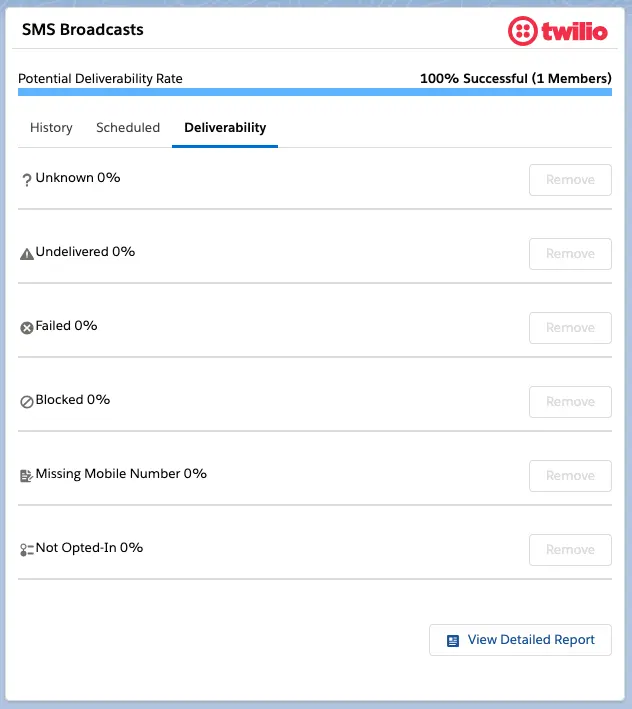
When you now send SMS campaigns, you'll see that opt-ins are reflected in your potential deliverability. Messages will not be sent to a campaign member unless they have opted in using the keyword that corresponds to the campaign.
In addition to requiring opt-ins for campaigns, you can require opt-ins for use of the 1:1 SMS Messaging component. On the Salesforce Twilio Configuration page, go to the SMS Settings panel, click on the Require Opt-In for 1:1 SMS Messaging toggle, and then click Save .
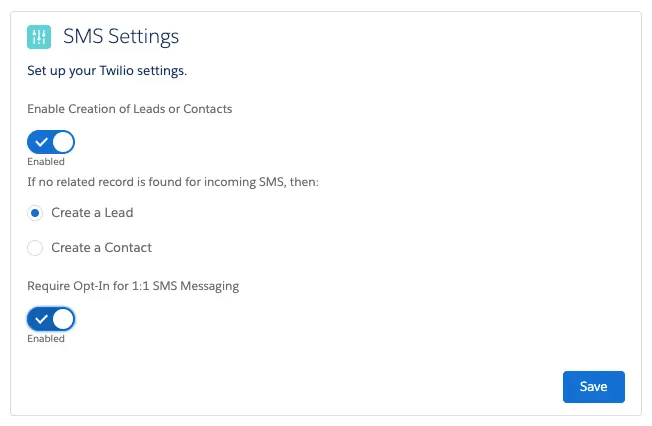
The 1:1 SMS Messaging component will now block message sending unless there is at least one Opt_in__c record that matches the user's mobile number. In other words, if a customer has never texted in an opt-in keyword, Salesforce users will be blocked from messaging them.
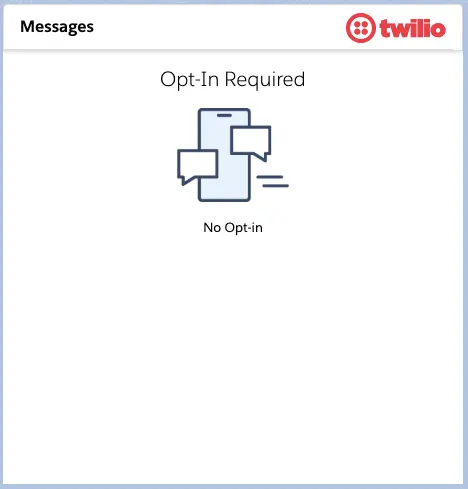
If a user attempts to message a recipient who does not have an opt-in, they will see this message in both the 1:1 SMS Message component and the SMS Inbox component: