Shopify by Littledata Source
Littledata's Shopify to Segment connection uses a combination of client-side (browser) and server-side tracking to ensure 100% accurate data about your Shopify store in Segment. Littledata automatically integrates with Shopify and Shopify Plus sites to capture every customer touch point, including sales, marketing, customer and product performance data.
Littledata is available as an independent Shopify App.
After the installation process:
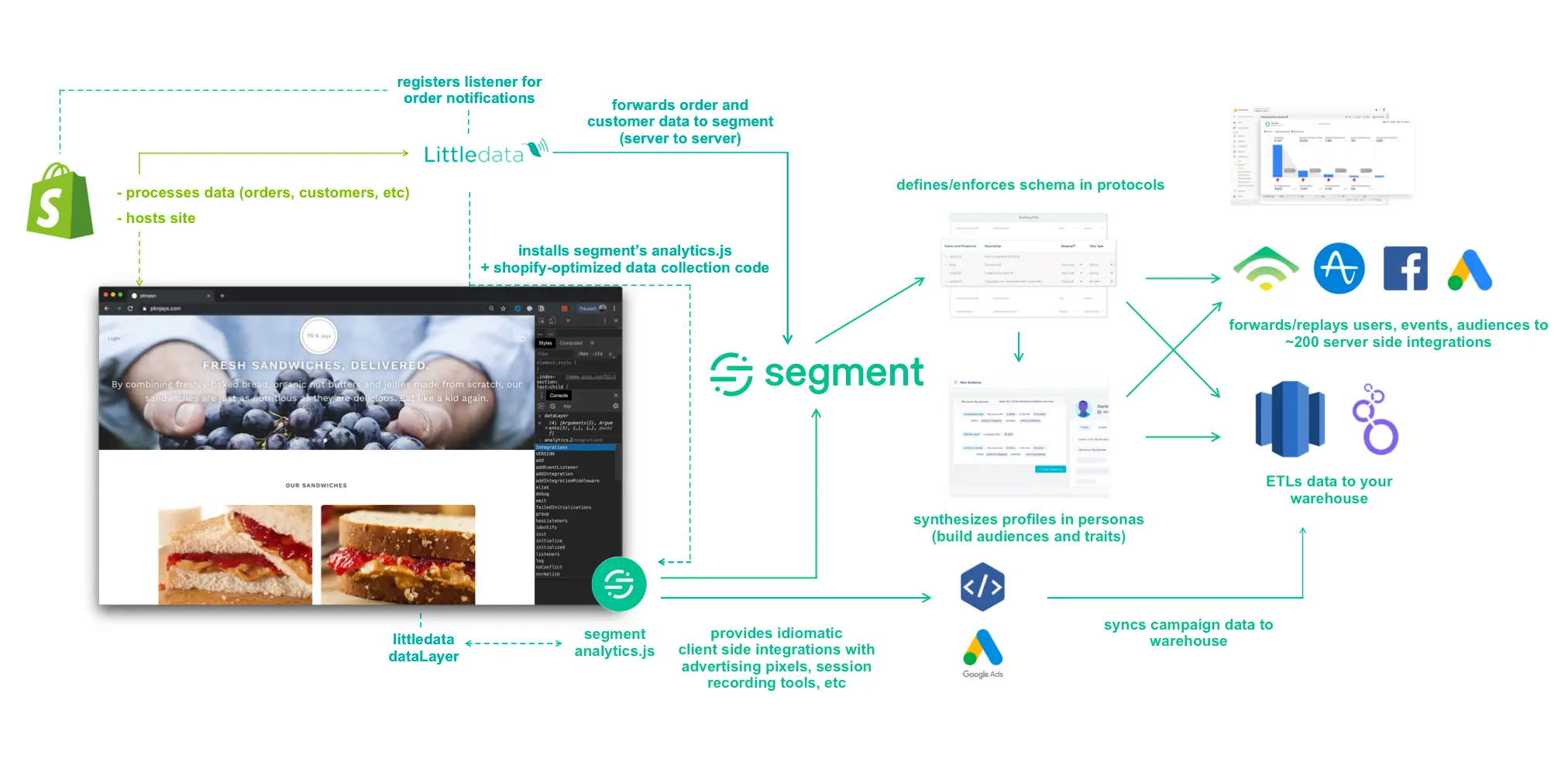
- A minified tracking script is loaded through Littledata's app embed in your Shopify theme.
- Segment's Analytics.js 2.0 library loads on all pages, except for the checkout.
- All pages include a LittledataLayer data layer.
- Device-mode e-commerce events can send to all Segment destinations.
- Segment's anonymous ID and Google Analytics' client ID passes to Littledata's servers to ensure consistent user journey tracking
During the Segment connection setup, Littledata also adds a set of webhooks to your Shopify store. When a customer interacts with your store these changes are relayed server-side from Shopify to Littledata to Segment. The advantages to this approach are:
- 100% event capture for adds to cart, checkout steps, sales and refunds/returns
- Customer data (for example, email) securely relayed server-side
- No extra scripts on the sensitive and secure checkout pages
- Accurate marketing attribution, even when customers use ad-blockers or cookie opt-outs
- Supports cloud-mode destinations such as Facebook Conversions API
Here's an architecture diagram that shows how the Littledata app mediates data flow between Shopify and Segment.
Note
This integration is maintained by Littledata and isn't supported by Segment directly. The Littledata app has been reviewed by the Twilio team for alignment with Segment's E-Commerce Spec. However, it requires a paid subscription with Littledata, who mediates the connection between Shopify and Segment. Contact the Littledata Support team with any questions.
To install Shopify by Littledata, follow these steps:
-
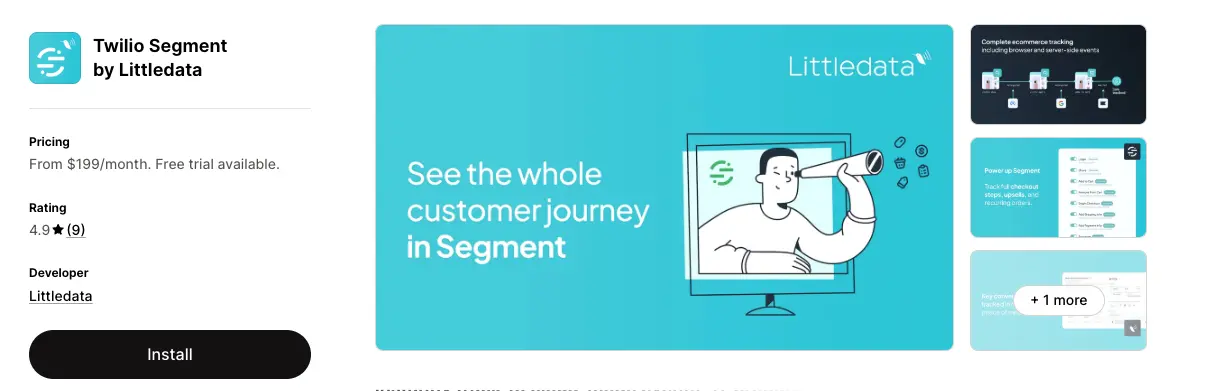
Log in to your Shopify store account and go to the Shopify app store listing for Twilio Segment by Littledata.
-
Click Install to add the app and choose a Littledata subscription suitable for your store's volume of monthly orders. All plans include a 30-day free trial.
-
From the Littledata dashboard, click Add destination, then find the Segment destination and click Connect.
-
Choose your tracking preferences, then click Continue. The recommended settings are already selected.
-
In your Segment workspace, go to Sources and search for Shopify (by Littledata). Add the source, then return to Littledata, tick I have completed all the steps, and click Continue.
-
Add the Segment write key for the source that is going to send data. To find it, go to Connections > Sources in your Segment workspace, select your source, open Settings, then select API Keys.
-
Littledata's tracking script and webhooks are automatically applied to the store and the installation is complete. You can now send data from Shopify to hundreds of Segment destinations.
Using a headless or Shopify Hydrogen setup? Follow the setup steps for headless Shopify tracking instead.
Below is a table of events that Shopify by Littledata sends to Segment through the analytics.js library. These events will show up as tables in your warehouse, and as regular events in your other Destinations supporting device-mode.
| Event Name | Description |
|---|---|
| Cart Viewed | A user has viewed the /cart page |
| Page Viewed | A user has viewed any page |
| Product Clicked | A user has clicked a product within a product list |
| Product Image Clicked | A user has clicked a product image |
| Product List Viewed | A user has viewed a product as they scroll down the collection page |
| Product Shared | A user has shared a product through social links |
| Product Viewed | A user has viewed a product page |
| Products Searched | A user has searched for products (with search query) |
| Registration Viewed | A user has viewed the /account/register page |
| Session Started | A user has started a browser session* |
| Thank you Page Viewed | A user has viewed the thank you page after completing an order** |
Session Started is triggered on a user's first visit in a browser session. It is only sent again for the same user after the browser is closed; opening more tabs of your store will not trigger an extra session start.
This event is less reliable than the de-duplicated Order Completed event sent from the Littledata servers, but you can use it in device-mode destinations to trigger a conversion. The payment_method and shipping_method properties are not available with this event.
You can opt out of device-mode pageviews or events from the data pipeline settings in the Littledata app.
The source also respects GDPR-compliant cookie consent through Shopify's cookie banner, or popular consent management platforms such as OneTrust, Clym, Consentmo and Pandectes.
Littledata is also compatible with Segment Consent Management, stamping the user's consent category preferences on tracked events.
Below is a table of events that Shopify by Littledata sends to Segment from Littledata's servers. These events appear as tables in your warehouse, and as regular events in your other Destinations that support cloud-mode. They include the anonymousId that links them to the device-mode events where the event was part of a previous user session, or associated with a userId that was previously linked with an anonymousId. See Littledata's troubleshooting guide on attribution for more details.
| Event Name | Description |
|---|---|
| Checkout Started | A user has started checkout |
| Checkout Step Viewed | A user has viewed a step in the checkout |
| Checkout Step Completed | A user has completed a step in the checkout |
| Coupon Applied | Sent with Checkout Step Completed or Order Completed when user has applied a coupon |
| Customer Created | User added as a customer |
| Customer Enabled | A user has confirmed their email address and created a Shopify customer account with verified_email set as true |
| Fulfillment Created | An order fulfillment status has changed (including status, tracking_numbers and tracking_urls where the shipping integration allows) |
| Fulfillment Updated | An order fulfillment status has changed (including status, tracking_numbers and tracking_urls where the shipping integration allows) |
| Order Cancelled | An admin has cancelled an order (including the cancel_reason) |
| Order Completed | A prospect has completed an order |
| Order Refunded | An order has been refunded |
| POS Order Placed | A user has placed an order through Shopify POS |
| Payment Failure | A user completed checkout step 3 but the payment method failed (for example, the card details were valid but the charge did not succeed) |
| Payment Info Entered | A user has entered payment info |
| Post Purchase Upsell | A customer has accepted a post-purchase upsell (contains only the newly added products) |
| Product Added | A user has added a product to the cart, and left it in the cart for more than 10 seconds |
| Product Removed | A user has removed a product from the cart |
The Order Completed event may be delayed by up to 40 seconds to wait for tags applied after the order was created.
In the Littledata application you can choose which of the following fields you want to send as the userId for known customers:
- Shopify customer ID (default) - Recommended if you have a simple Shopify setup with minimal integrations.
- Hashed email - The MD5 email hash is useful if you have other marketing platforms sending traffic where you know the email of the visitor (for example, email marketing like Bronto or Marketo), but not their Shopify customer ID. Littledata uses an unsalted MD5 hash (`createHash` method) to match your other sources.
- Email - The email identifier is recommended when other platforms use the email and can't hash it, and you are comfortable with the privacy implications.
- Shopify customer metafield - If you have your own customer identifier, and can add it to the Shopify customer record as a metafield, you can send this to Segment.
- None (no identifier) - Choose "none" if user identity is already handled by your Segment implementation and you only need the extra events powered by Littledata's Shopify source.
For Unify and Engage, Littledata also sends shopify_customer_id as an externalID for advanced matching.
For every event where there is an identifiable Shopify customer (from both the device-mode and cloud-mode) Littledata also sends an Identify call to build a customer profile in Unify and trigger updates in CRM systems connected to Segment. This happens when the customer logs into the storefront, on the last step of the checkout, with the order, and also after purchase with any customer update in Shopify admin.
The following traits are included with an Identify call:
| Property Name | Description | Property Type |
|---|---|---|
| userId | The chosen user identifier. This defaults to the Shopify Customer ID. | Double |
| createdAt | The date the customer record was created. | Date |
| customerLifetimeValue | The total spend of the customer on the Shopify store. | Double |
| default_address.street | The customer's default street address. | String |
| default.address.postalCode | The customer's ZIP or postal code. | String |
| default_address.state | The customer's state address. | String |
| default_address.country | The customer's country. | String |
| description | The customer's notes. | String |
| The customer's email address. | String | |
| email_consent_state | If the user has consented to email marketing (mapping to EmailMarketingState) | String, Null |
| email_opt_in_level | Level of user's opt in email marketing (mapping to CustomerMarketingOptInLevel) | String, Null |
| firstName | The customer's first name. | String |
| lastName | The customer's last name. | String |
| phone | The customer's phone number. | String |
| purchaseCount | The number of orders by the customer. | Integer |
| sms_consent_state | If the user has consented to SMS marketing (mapping to SmsMarketingState) | String, Null |
| sms_opt_in_level | The level of the user's opt in to SMS marketing (mapping to CustomerMarketingOptInLevel) | String, Null |
| state | The Shopify customer state - enabled, disabled, invited to create an account or customer declined. | String |
| tags | The custom tags applied to the customer. | String |
| verified_email | Whether the customer has verified their email. | Boolean |
All events (device-mode and cloud-mode) contain the Google Analytics clientId field where known. This allows the Google Analytics destination to be configured in cloud-mode only, so all client side events are relayed through Segment's servers - reducing the scripts needed on your website.
Email marketing platforms such as Klaviyo, Iterable and Hubspot require an email property with any server-side event in order to associate events with a customer (they cannot use an anonymousId). Littledata adds that email property whenever an email address is set in the user traits() object (in device-mode) or from the Shopify customer record (in cloud-mode). Iterable can also receive cookie values with the Order Completed event.
Littledata also supports a direct integration for Klaviyo with enhanced identity resolution for abandonment retargeting.
To support seamless customer tracking the Mixpanel, Vero and KISSMetrics destinations, Littledata ensures the pre-checkout anonymousId is added as an alias of the userId (used from checkout step 2 onwards).
All recurring orders in the Shopify checkout, from any subscription app, are tracked as Order Completed events.
Additional subscription lifecycle events through Littledata's ReCharge connection are available in cloud-mode destinations.
| Event Name | Description |
|---|---|
| Subscription Created | A customer has created a subscription |
| Subscription Updated | A customer has updated a subscription |
| Subscription Cancelled | A customer has cancelled a subscription |
| Subscription Skipped | A customer has skipped an order |
| Subscription Charge Failed | A recurring charge failed |
These events include the following properties in addition to the standard event properties:
| Event property | Property Type | With event |
|---|---|---|
subscriptionId | String | All |
items | Array | All |
status | String | All |
order_interval_frequency | Number | All |
order_interval_unit | String | All |
value | Number | All |
cancel_reason | String | Subscription Cancelled |
cancel_comment | String | Subscription Cancelled |
error_type | String | Subscription Charge Failed |
The list below outlines the properties included in most events. For a detailed schema showing exactly which properties are sent with which events, contact the Littledata Support team.
| Property | Description | Property Type |
|---|---|---|
affiliation | A comma-separated list of order tags. Untagged orders use Shopify. | String |
cart_id | The ID of the Shopify cart. | String |
checkout_id | The ID of the checkout session. | String |
context['Google Analytics'].clientId | The user's Google Analytics Client ID. | String |
context.ip | The user's IP address. | String |
coupon | A comma-separated string of discount coupons used, if applicable. | String |
currency | The currency of the order. | String |
discount | The discounted amount. | Float |
email | The Shopify email address (after checkout step 2), or email submitted on a storefront form. | String |
lifetime_revenue_littledata | The lifetime revenue of the customer in Shopify. | String |
location_id | The location ID of the Point of Sale. | Integer |
order_id | The ID of the order is by default the Shopify order name. | String |
payment_gateway_littledata | The payment gateway used by the customer. | String |
payment_method | The payment method chosen for checkout. | String |
presentment_currency | The user's local currency. | String |
presentment_total | The order total in local currency. | String |
products | A list of all the products at that step of the funnel. | Array |
purchase_count_littledata | The total purchase count for the customer. | Integer |
revenue | The product revenue (excluding discounts, shipping and tax) * | Float |
sent_from | The unique property to identify events sent by Littledata. | String |
shipping | The shipping cost. | Float |
shipping_method | The shipping method chosen for checkout. | String |
shopify_customer_id_littledata | Shopify's identifier for the customer. | Integer |
source_name | The source of the order (e.g. web, android, pos). | String |
step | The checkout step number. | Integer |
subscription_revenue | The revenue associated with a Subscription Event. | Float |
subtotal | The total after discounts but before taxes and shipping. | Float |
tax | The amount of tax on the order. | Float |
total | The total value of the order. | Float |
userId | Chosen user identifier, defaulting to Shopify Customer ID | String |
The revenue property is available only with the Order Completed event
The revenue property is only available with the Order Completed event and requires you to opt in through the Littledata application. Revenue is a reserved property in many Segment destinations.
Each item in the products array, or Product Viewed and Product Added events, will have the following properties
| Property | Description | Property Type |
|---|---|---|
brand | The brand of the product (Shopify vendor). | String |
category | The category of the product (defaults to all). | String |
compare_at_price | The product price before any discount. | String |
coupon | Coupon code associated with the product. | String |
image_url | The URL of the first product image. | String |
list_id | The ID of the product collection (for List Views and Clicks). | String |
list_position | The product position in the collection (for List Views and Clicks). | Integer |
name | Product name. | String |
price | The product price. | Float |
product_id | Shopify product ID. | String |
quantity | The quantity of this product. | Integer |
product_properties | Custom properties of purchased products. | Array |
shopify_product_id | Also Shopify product ID. | String |
shopify_variant_id | The Shopify variant ID. | String |
sku | The product SKU. | String |
url | The URL of the product page. | String |
variant | The product variant name. | String |
All events sent to Segment include the Shopify Market handle by default (see market_handle and market_id in the event properties above). Because Segment acts as a hub for your marketing stack, this flows through to every connected destination - whether that's a data warehouse, an email platform like Klaviyo or Braze, or an analytics tool like Mixpanel.
You can segment audiences, filter reports, and trigger market-specific flows across your entire stack without any additional data enrichment. This requires Shopify Markets to be active in your store, but does not require any per-market destination configuration within Littledata.
Littledata's Event Editor is a no-code interface for shaping how Littledata sends Shopify events to Segment. You can enable or disable individual events, edit field mappings, filter events with trigger conditions, clone one Shopify event into multiple destination events, and enrich events with additional data from Shopify metafields.