twilio/call-to-action
The twilio/call-to-action buttons let recipients tap to trigger actions such as launching a website, copying a coupon code, or making a phone call.
If you are using a URL button and want to submit the content template for WhatsApp approval, the URL must resolve to a publicly accessible website. If there is a variable, a valid path sample should be included in the variables array. The combined URL should resolve to a publicly accessible website.
For example, "url": ["https://www.twilio.com/{{1}}"] would include a path sample in the variables definition: "variables": {"1": "docs"}.
Warning
Twilio/call-to-action content templates can be sent via WhatsApp for out of session messages with variables. If the content template's body starts or ends with a variable, it won't be approved by WhatsApp. The same applies if two variables are placed next to each other. A sample variable is required. For additional information about variables, see Using Variables with Content Templates.
- Facebook Messenger
VOICE_CALLandVOICE_CALL_REQUESTare a private beta feature in select regions.- If the content template is being sent in session over WhatsApp without approval, only three buttons are allowed.
- On WhatsApp, a card must be approved as a content template before it can be sent. Additional approval steps are required if you use variables with
twilio/card. A valid media sample is required if atwilio/cardcontent template is created with media and/or variables and you plan to submit this template to WhatsApp for approval. Static media URLs should resolve to publicly hosted media files. Variable media URLs should include a valid media URL suffix in the variable declaration. - Each approved variable WhatsApp card template can include only one type of media. WhatsApp classifies approved templates into 1 of 3 types of media headers (Image, Video, Document) based on the sample that was submitted. Once the template has been approved another type of media header can't be sent using the template.
- For example, if a content template is approved with an image, you can't send a video using that same content template.
- If the content template's body starts or ends with a variable or has two variables next to each other, the content template won't be approved by WhatsApp without a sample variable. For additional information about variables, see Using Variables with Content Templates.
- When creating your content template, ensure that the phone number in the actions array below is valid. Otherwise, the content template will fail to send.
- WhatsApp footers translate to subtitles in
twilio/cards. - If your template contains more than one button, you must submit it for approval.
- For unapproved cards used during a session, the following rules apply:
- Only the buttons types
QUICK_REPLY,URL,VOICE_CALL_REQUESTandVOICE_CALLare supported. Templates that include aPHONE_NUMBERbutton type are not supported. - If you send a Content resource that contains buttons with different action types within a session in an unapproved template, the request fails. WhatsApp requires every button in an in session message to use the same action type. For example, an unapproved template that includes both a
voice_callbutton and aurlbutton fails validation. - There can only be one URL button in the Content. For example, a Content with two URL buttons will fail.
- Only the buttons types
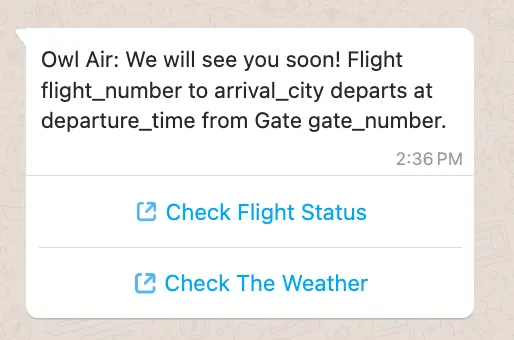
| Parameter | Type | Required | Variable support | Description |
|---|---|---|---|---|
body | string | Yes | Yes | The text of the message you want to send. This is included as a regular text message. Maximum length: 640 characters |
actions | array | Yes | Yes | Call to action content templates support URL, PHONE, COPY_CODE, and VOICE_CALL buttons. |
To learn more, see common components.
Info
Limitations:
- Only one of the two call options can be on a content template:
PHONEVOICE_CALL
- Up to two URL buttons are allowed.
- Up to five quick reply buttons are allowed.
- If
REQUEST_CONTACT_INFOis present, no other button types are allowed to be present
| Property | Supported channels | Parameters |
|---|---|---|
URL |
|
|
PHONE |
|
|
VOICE_CALL |
| |
VOICE_CALL_REQUEST |
| |
COPY_CODE |
| |
REQUEST_CONTACT_INFO |
|
1// Download the helper library from https://www.twilio.com/docs/node/install2const twilio = require("twilio"); // Or, for ESM: import twilio from "twilio";34// Find your Account SID at twilio.com/console5// Provision API Keys at twilio.com/console/runtime/api-keys6// and set the environment variables. See http://twil.io/secure7// For local testing, you can use your Account SID and Auth token8const accountSid = process.env.TWILIO_ACCOUNT_SID;9const apiKey = process.env.TWILIO_API_KEY;10const apiSecret = process.env.TWILIO_API_SECRET;11const client = twilio(apiKey, apiSecret, { accountSid: accountSid });1213async function createContent() {14const content = await client.content.v1.contents.create({15friendly_name: "owl_air_cta",16variables: {171: "flight_number",182: "arrival_city",193: "departure_time",204: "gate_number",215: "url_suffix",22},23language: "en",24types: {25"twilio/call-to-action": {26body: "Owl Air: We will see you soon! Flight {{1}} to {{2}} departs at {{3}} from Gate {{4}}.",27actions: [28{29type: "URL",30title: "Check Flight Status",31url: "https://owlair.com/{{5}}",32},33{34type: "PHONE_NUMBER",35title: "Call Support",36phone: "+15555551234",37},38],39},40},41});4243console.log(content.dateCreated);44}4546createContent();
Response
1{2"sid": "HXaaaaaaaaaaaaaaaaaaaaaaaaaaaaaaaa",3"account_sid": "ACaaaaaaaaaaaaaaaaaaaaaaaaaaaaaaaa",4"friendly_name": "owl_air_cta",5"language": "en",6"variables": {7"1": "flight_number",8"2": "arrival_city",9"3": "departure_time",10"4": "gate_number",11"5": "url_suffix"12},13"types": {14"twilio/call-to-action": {15"body": "Owl Air: We will see you soon! Flight {{1}} to {{2}} departs at {{3}} from Gate {{4}}.",16"actions": [17{18"type": "URL",19"title": "Check Flight Status",20"url": "https://owlair.com/{{5}}"21},22{23"type": "PHONE_NUMBER",24"title": "Call Support",25"phone": "+15555551234"26}27]28}29},30"url": "https://content.twilio.com/v1/Content/HXaaaaaaaaaaaaaaaaaaaaaaaaaaaaaaaa",31"date_created": "2015-07-30T19:00:00Z",32"date_updated": "2015-07-30T19:00:00Z",33"links": {34"approval_create": "https://content.twilio.com/v1/Content/HXaaaaaaaaaaaaaaaaaaaaaaaaaaaaaaaa/ApprovalRequests/whatsapp",35"approval_fetch": "https://content.twilio.com/v1/Content/HXaaaaaaaaaaaaaaaaaaaaaaaaaaaaaaaa/ApprovalRequests"36}37}