Twilio Connect Python Quickstart
Twilio Connect allows developers to obtain authorization to make calls, send text messages, purchase phone numbers, read access logs and perform other API functions on behalf of another Twilio account holder.
As an example, imagine you want to access the Twilio account of a user of your web application to provide in-depth analytics of their Twilio account activity. This quickstart solves this problem by creating your first Twilio Connect App and placing the "Connect" button on your website so users can authorize your app to access their Twilio account data and make API requests against their account.
To create your first Connect App, log in to the Twilio Console and go to Settings > Account settings > Connect applications. Click Create a new connect app and fill in the top section with the name of your application and your company information.
Next, assign an Authorize URL to your Connect application. The Authorize URL is the URL that Twilio will redirect the user's browser to after they have authorized your application to access their Twilio account. Later on in the quickstart we'll demonstrate how the Authorize URL is used.
Lastly, select the access rights your Connect app requires on the user's account. For this example we will access call logs for analytics, so we'll choose "Read all account data".
Here's what our sample Connect application looks like:
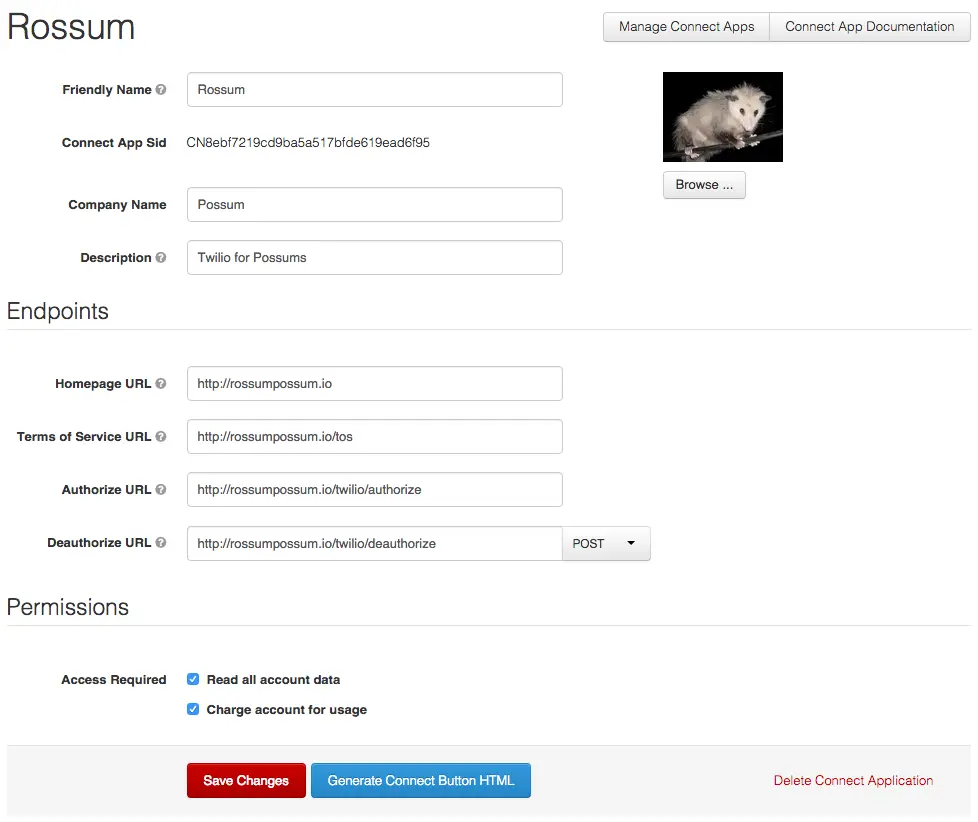
Click Save and you're done!

The Connect button is where your customers will start the process of authorizing your Connect App to access their Twilio account.
To get the Connect button code, click Generate connect button HTML on your Connect App details page. Copy the generated code and paste it into the HTML of your website where you would like the button to appear.
1from flask import Flask, redirect, request2app = Flask(__name__)3@app.route('/authorize-callback', methods=['GET', 'POST'])4def authorize_callback():5account_sid = request.values.get('AccountSid', None)67# Here you need to add code that will store8# the account sid in your database, so you can find it later.910# Finally redirect11return redirect('http://example.com/myapp')1213if __name__ == "__main__":14app.run(debug=True)
1from twilio.rest import Client23# The customer's AccountSid4account = "ACXXXXXXXXXXXXXXXXX"56# Your own AuthToken7token = "YYYYYYYYYYYYYYYYYY"89client = Client(account, token)1011# Request the call logs for the customer's account, and print them.12for call in client.api.account.calls.list(limit=100):13print("Call sid " + call.sid + ": " + str(call.duration) + " seconds.")
Retrieving call logs on behalf of your customers is just the start of what you can accomplish with Twilio Connect. Visit the complete Connect documentation and best practices to learn more about how to integrate Connect's additional capabilities into your applications.