Explore language operator results
Because Conversation Intelligence runs in real time, receiving and handling language operator results is as important as generating them. You can use language operator results to:
- Test and validate intelligence configurations
- Observe language operator behavior during or after conversations.
- Trigger downstream business workflows during or after conversations.
- Retrieve execution details, such as latency, model information, and usage metrics for cost analysis, through the system metadata object in the operator results.
This guide covers the ways to activate language operator results and how to view them in Twilio Console.
You can activate language operator results in two ways:
- Activate in real time during conversations
- Activate after conversations end (post-conversation)
Take immediate action while the conversation is in progress. Common real-time use cases include:
- Agent assist: Push live language operator results to an agent's desktop or Customer Relationship Management (CRM) UI.
- Surface recommendations from the Next Best Response language operator as they're produced
- Display real-time compliance feedback from the Script Adherence language operator to guide agent behavior
- Automated decisioning: Trigger automated actions based on language operator results without human intervention
- Detect suspected fraud and immediately decline transactions
- Escalate conversations to a supervisor when risk thresholds are exceeded
Analyze, report, and activate downstream workflows after a conversation ends. Common post-conversation use cases include the following:
- Results aggregation: Aggregate language operator results across conversations
- Trend analysis: Measure trends over time (such as quality, sentiment, and outcomes)
- Data export: Feed Business Intelligence (BI) tools, data warehouses, and reporting pipelines
These workflows rely on the Insights API and BI connectors. Learn more about conversation insights.
In Twilio Console, you can:
- View and filter conversations for an intelligence configuration
- Inspect conversations and their language operator results
- In Twilio Console, go to Orchestration > Conversation Intelligence > Intelligence configurations.
- Click the intelligence configuration you want to explore.
- Click the Conversations tab.
You'll see a list of conversations analyzed by the intelligence configuration. - Optionally, filter conversations by date, channel, or other metadata.
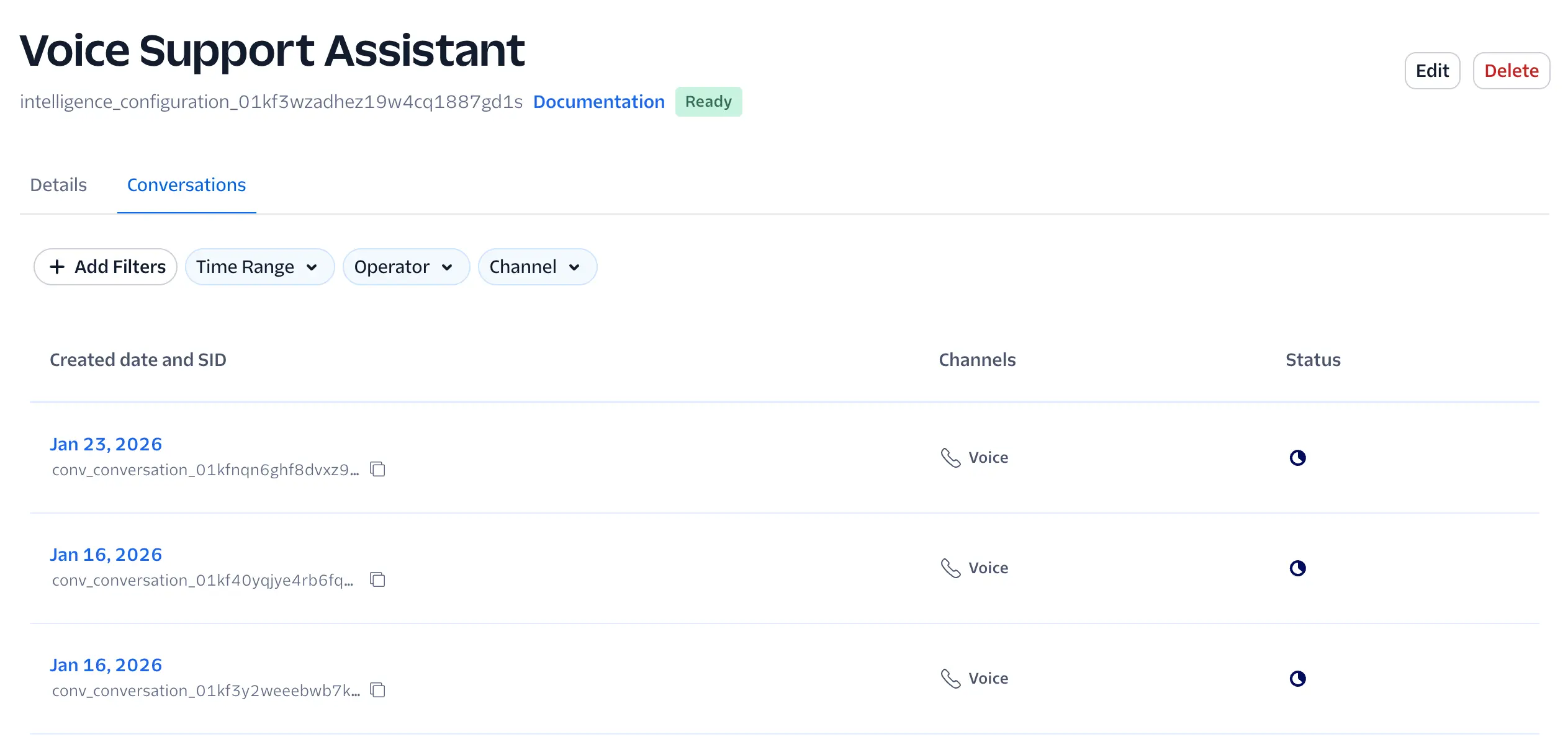
- On the Conversations tab of an intelligence configuration, click a conversation from the list.
- If the conversation is still active, click Refresh to load new transcript segments and language operator results in real time.
On the Threads tab, view the full conversation transcript with language operator results. The transcript:
- Groups language operator results by rule
- Inserts language operator results at the exact point in the conversation when the rule executed
- Timestamps and associates language operator results with the triggering event
Every operator result includes a metadata.system object automatically populated by Twilio at execution time. You can use it to inspect model usage, performance, and usage metrics (inputCharacters and outputCharacters) that correlate with billing for each operator run.
Note: metadata.system is read-only and cannot be modified.
| Field | Type | Description |
|---|---|---|
metadata.system.resolvedModel | string | The LLM used for this execution (for example, gpt-5.4-mini). |
metadata.system.latencyMs | integer | The operator execution time in milliseconds. |
metadata.system.inputCharacters | integer | The number of input characters sent to the model. Corresponds to your billable input unit. |
metadata.system.outputCharacters | integer | The number of output characters returned by the model. Corresponds to your billable output unit. |
metadata.system.inputTruncated | boolean | Whether the conversation input was truncated to fit the model's context window. |
1{2"id": "intelligence_operatorresult_98765",3"result": {4"score": 5,5"explanation": "The agent followed the script closely."6},7"metadata": {8"system": {9"resolvedModel": "gpt-5.4-mini",10"latencyMs": 245,11"inputCharacters": 12840,12"outputCharacters": 356,13"inputTruncated": false14}15}16}