Direct Sole Proprietor Registration in the Twilio Console
This guide is for Direct customers who want to register a phone number for Application-to-Person messaging over standard 10-digit long codes (A2P 10DLC) as a Sole Proprietor Brand, using the Twilio Console. If you use the Legacy Console, see the Direct Sole Proprietor Registration Overview instead.
Registration tells US carriers who you are and what types of messages you'll send to end users. This helps end users trust that your SMS traffic is legitimate, and keeps carriers from filtering your messages. See A2P regulations and registration options to learn more.
Sole Proprietor registration is available for customers in the United States and Canada who don't have a business Tax ID. A Tax ID here means a U.S. EIN or a Canadian Business Number that you use to file Federal U.S. or Canadian income tax as a corporate entity. If you're registering on behalf of a business that DOES have a Tax ID, or for a business located outside the United States or Canada, register a Standard or Low-Volume Standard Brand instead.
If you're an Independent Software Vendor (ISV) and want to register your customers for A2P as Sole Proprietors, see this overview.
Info
Not sure if you're an ISV? See this support article to understand what an ISV is.
Are you registering your Brand only for a One-Time Password (OTP) or other 2-Factor Authentication (2FA) use case? If so, consider Twilio's Verify service. With Verify you don't need A2P registration (Brand or Campaign) or any other sender provisioning.
In the Twilio Console, A2P 10DLC registration starts from the phone number you want to send from. Each number has a Finish setting up your number checklist with four steps:
- Select or set up compliance profile: Every phone number purchase must be associated with an approved compliance profile.
- Select messaging service: Assign the number to the Messaging Service that your A2P Campaign will use.
- Set up A2P Brand registration: A Brand verifies who you are with US carriers.
- Set up A2P Campaign registration: A Campaign describes the messages you'll send and how end users opt in and out.
Each step unlocks when the step before it is complete.
Warning
Sole Proprietor Campaigns can only have one 10DLC phone number attached to them.
If your Sole Proprietor Campaign uses a Messaging Service that has several 10DLC numbers, Twilio picks one of them at random as the verified 10DLC route. You can't choose which number gets registered. If you want a specific number to be used for A2P, remove all other phone numbers from the Messaging Service before you register the Campaign.
Any 10DLC numbers you add to the Messaging Service later won't be verified A2P 10DLC routes.
Info
The Campaign Registry (TCR) supports all "utf8mb4" supported characters.
If you don't have a US 10DLC phone number yet, buy one first. Then:
- In the Twilio Console, go to Communications > Numbers & senders > Overview.
- On the Phone Numbers tab, find your number under My Inventory. Numbers that still need registration show Messaging disabled and a Complete A2P registration link.
- Select Complete A2P registration to open the checklist for that number.
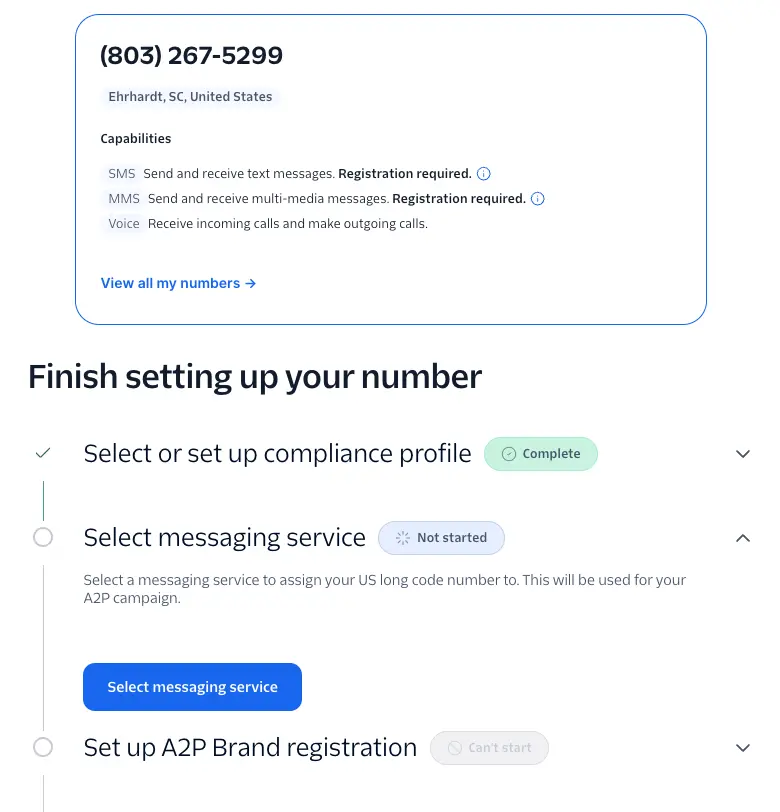
If the Select or set up compliance profile step isn't complete yet, select Get Started and follow the prompts before you continue.
In the Select messaging service step, select Select messaging service. On the Select or create a messaging service screen, open the Messaging service friendly name dropdown and either:
- Choose Create New Messaging Service. This is the usual choice for a new Sole Proprietor registration.
- Choose an existing Messaging Service. Services that are already linked to a Campaign are marked Connected with an existing A2P campaign.
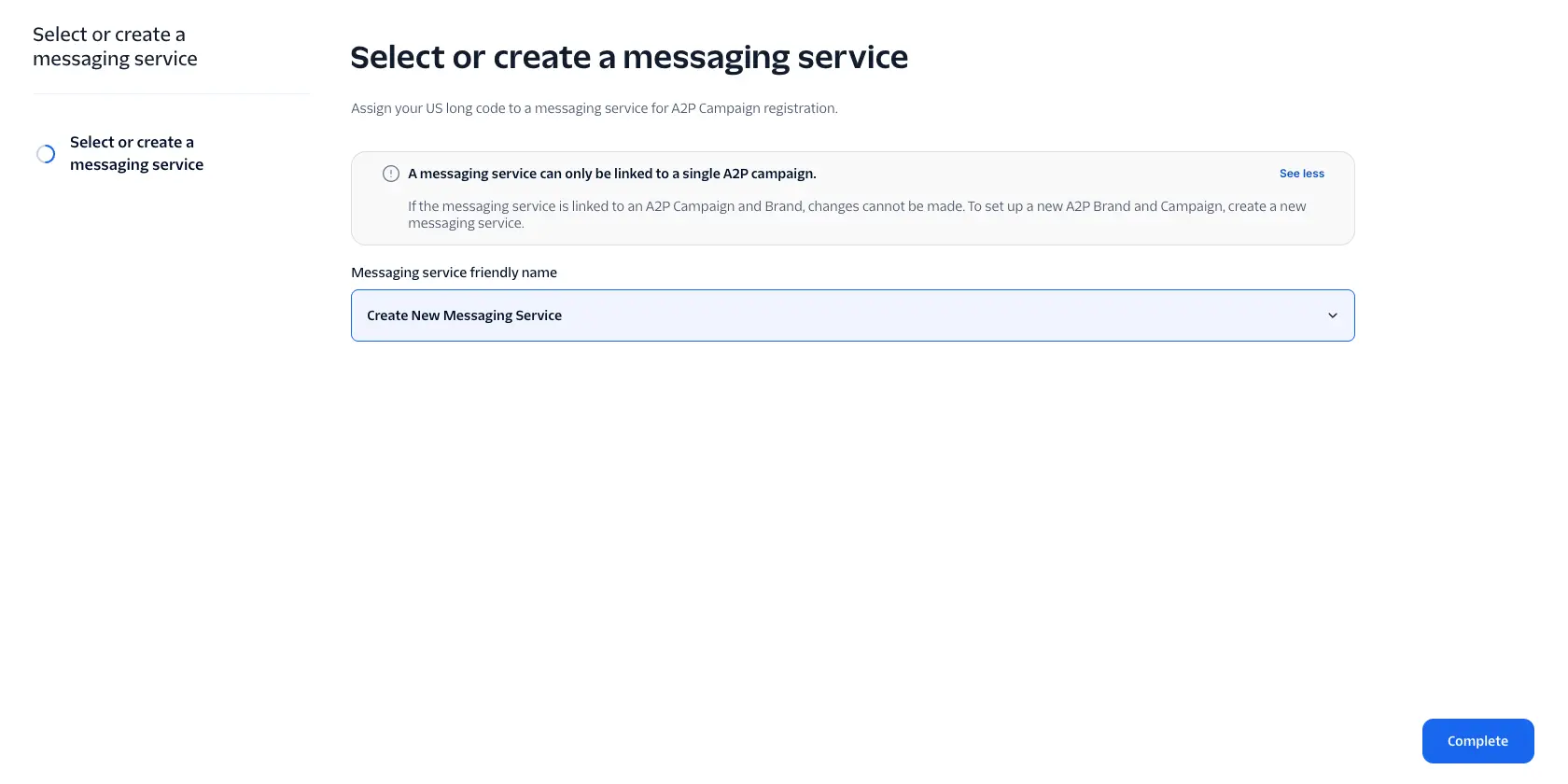
A Messaging Service can only be linked to a single A2P Campaign. If a service is already linked to an A2P Campaign and Brand, you can't change it here. To set up a new Brand and Campaign, create a new Messaging Service.
Select Complete. Your number is assigned to the service, and the checklist moves on to the Brand step.
In the Set up A2P Brand registration step, select Set up A2P Brand registration. The A2P Brand Registration form has two steps: Basic information and Registration details.
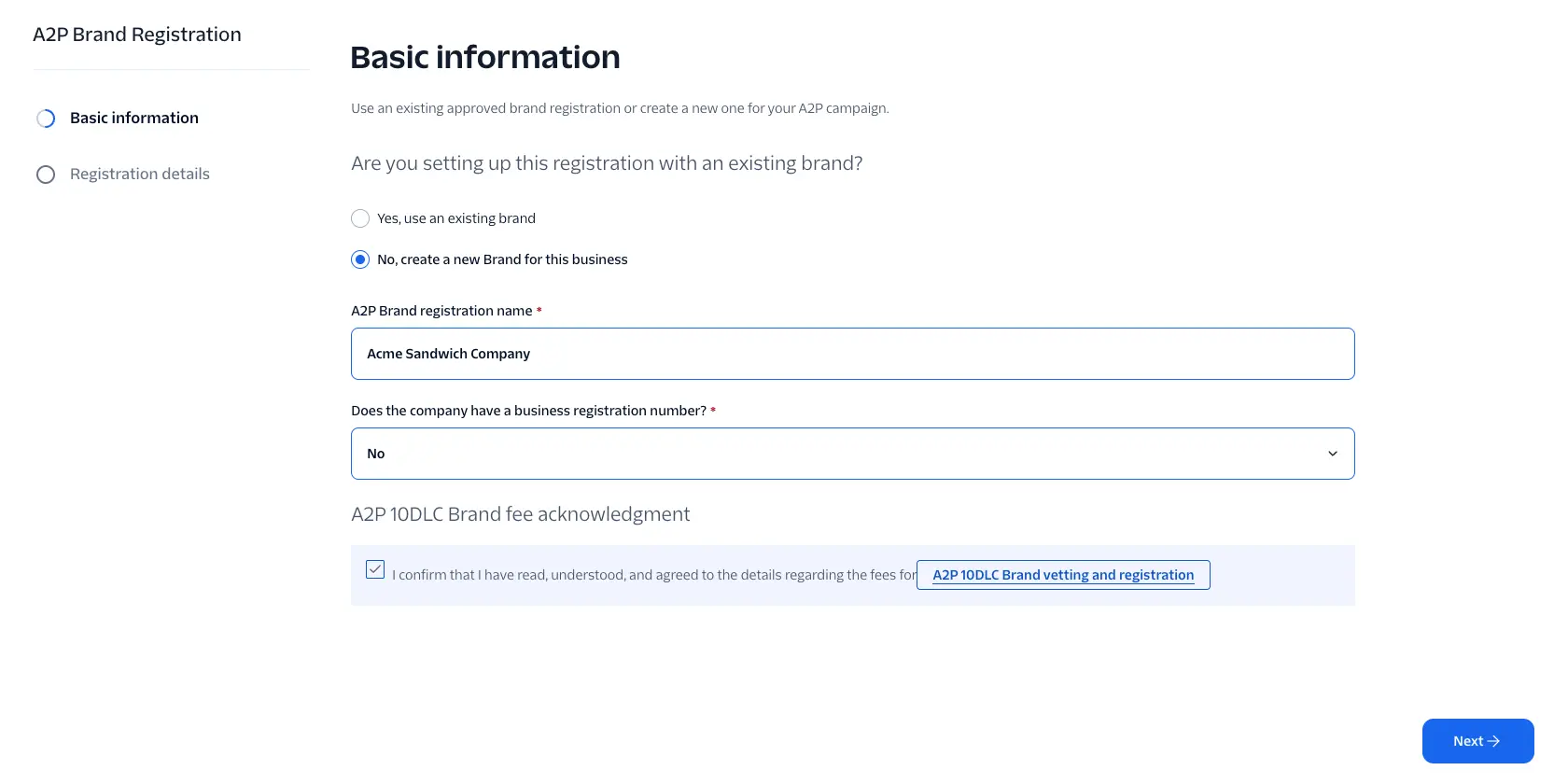
- Are you setting up this registration with an existing brand?: Select No, create a new Brand for this business. If you already have an approved Brand, you can select Yes, use an existing brand and choose it instead.
- A2P Brand registration name: A name for this Brand registration.
- Does the company have a business registration number?: Select No. A Sole Proprietor is a hobbyist or an individual businessperson who files income taxes with their own Social Security Number (or Canadian Social Insurance Number). If you DO have a U.S. EIN or a Canadian Business Number, you're not eligible for a Sole Proprietor Brand and must register a Standard or Low-Volume Standard Brand instead.
- A2P 10DLC Brand fee acknowledgment: Check the box to confirm that you agree to the Brand fees. Select A2P 10DLC Brand vetting and registration to see the fee details. Sole Proprietor Brands pay only the one-time Brand registration fee (shown in the fee details).
Select Next.
The Registration details step starts with a short introduction to A2P 10DLC Brand registration. Select Start, then fill in each screen and select Next.
Profile details and contact information
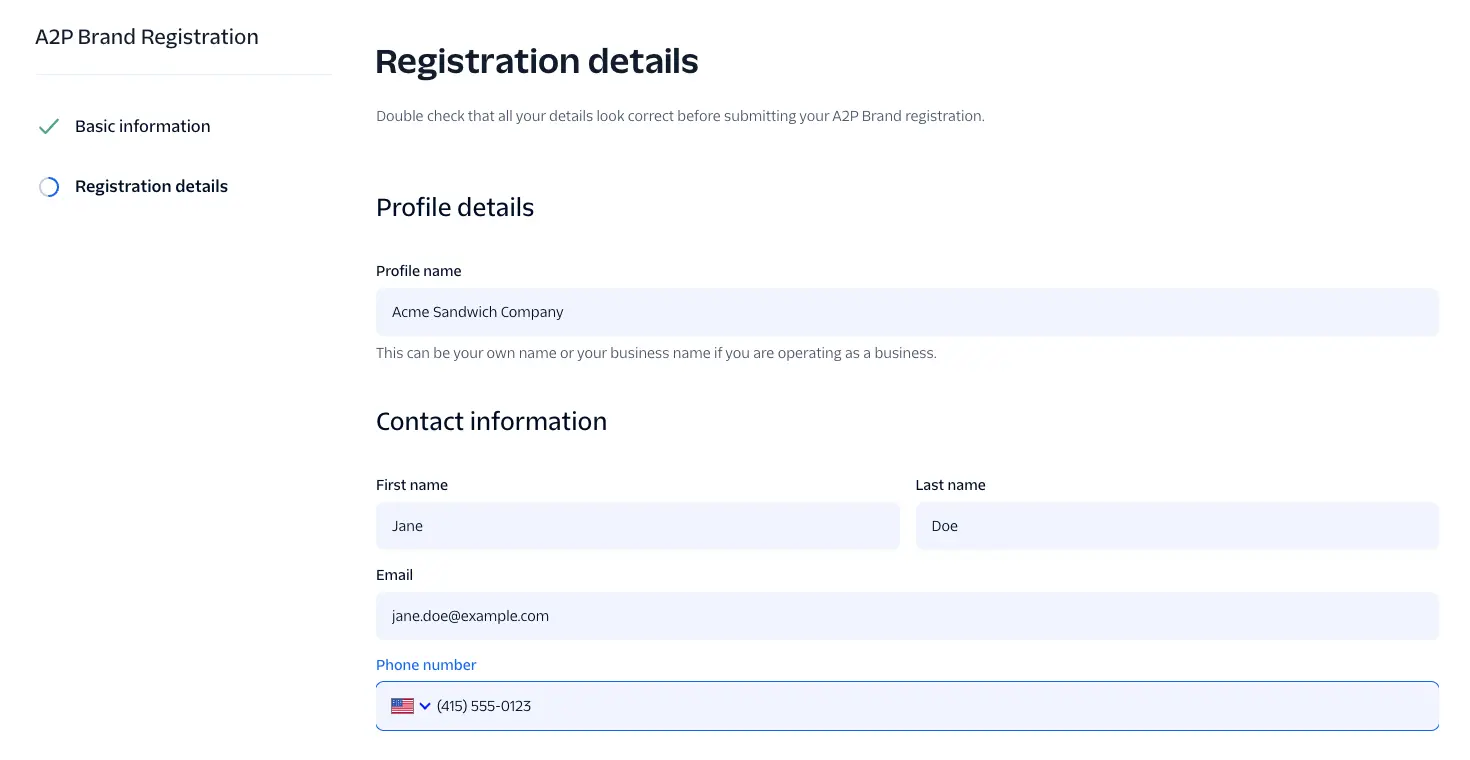
- Profile name: Your own name, or your business name if you operate as a business.
- First name and Last name
- Email: Must be a well-formatted address with a valid domain, and can't be a disposable address.
- You can use an email address a maximum of 10 times across all A2P Brand registrations with TCR. Registrations with other vendors that use this email address count toward this limit.
- Phone number: Your contact phone number. Must be a well-formatted number.
Business address
First, choose the Business address country: United States or Canada. Then enter the address. You can search for it, or select edit address manually to fill in the street, city, state or province, and postal code yourself. If you're registering for yourself and not as a business, this can be your personal address.
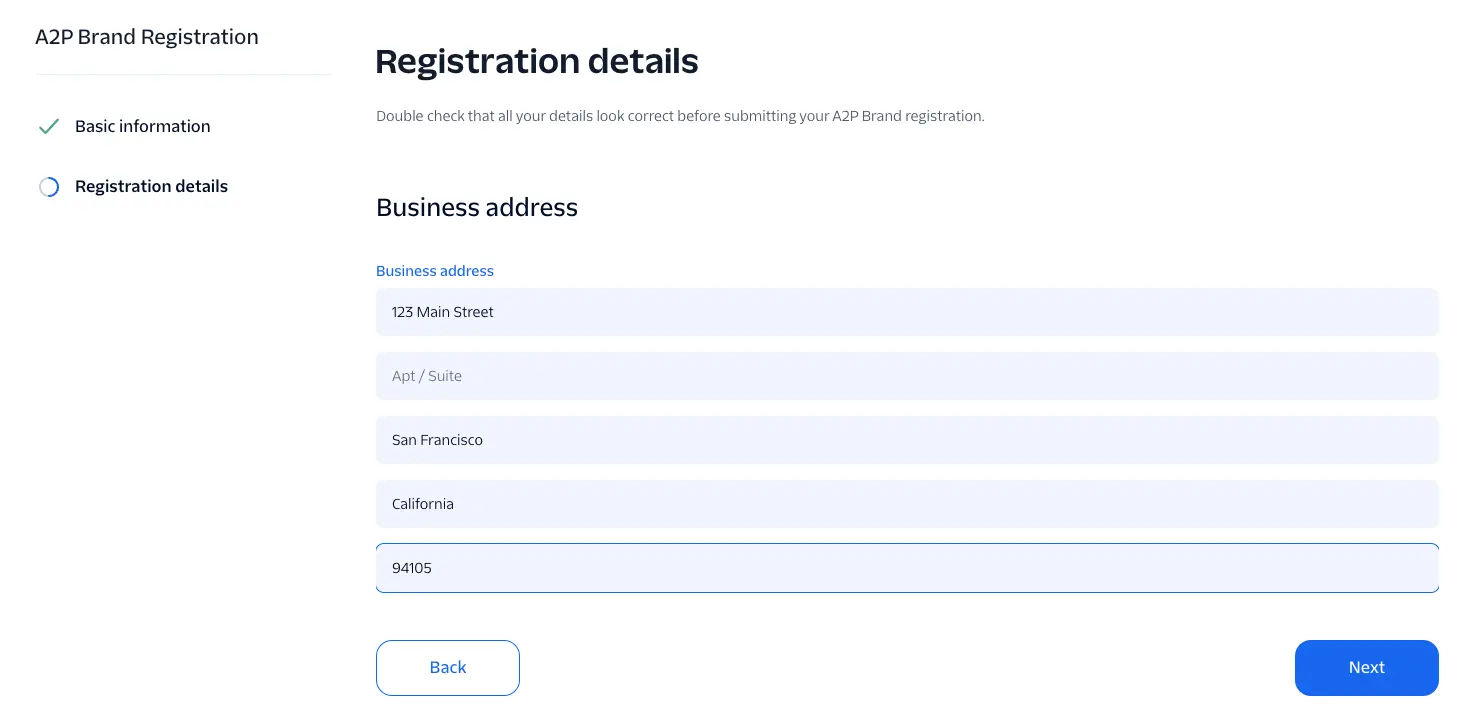
Like your email, you can use an address a maximum of 10 times across all A2P Brand registrations with TCR. Registrations with other vendors that use this address count toward this limit.
Brand information
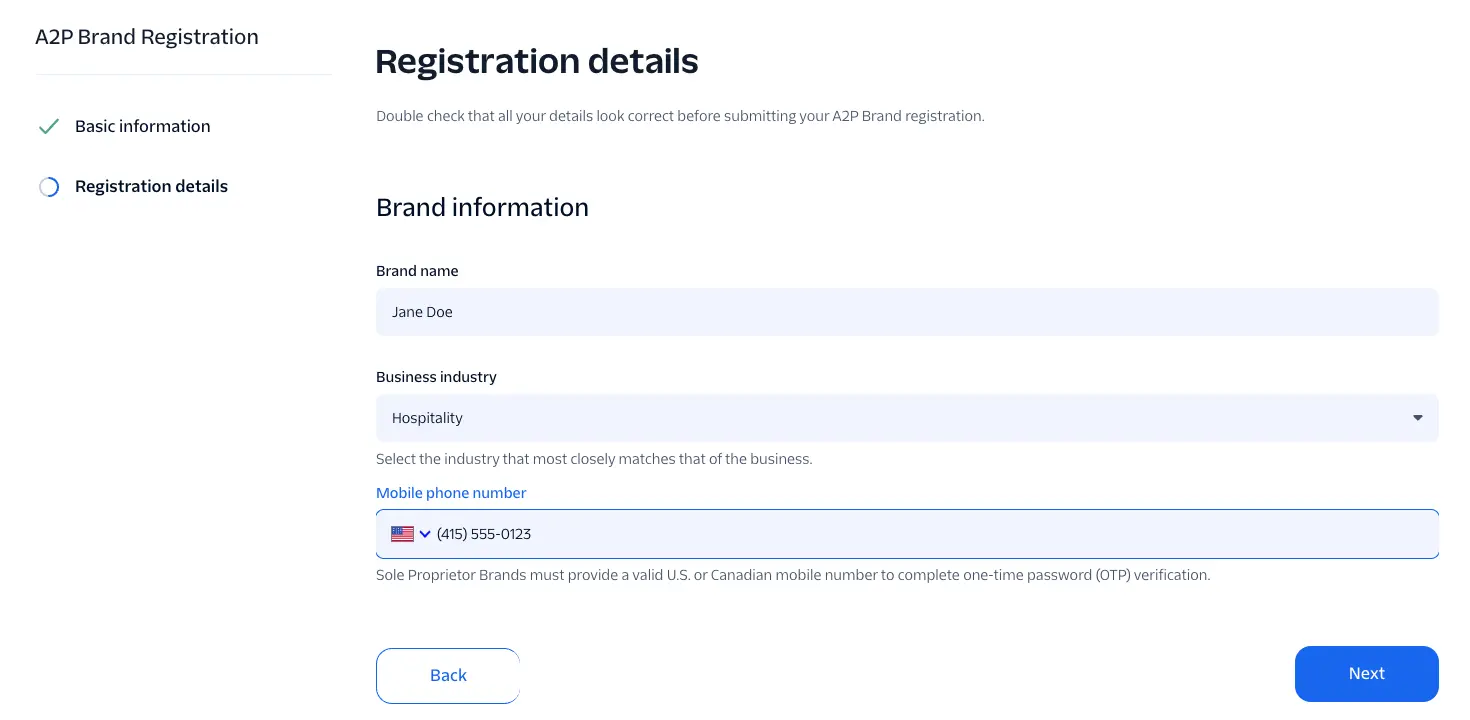
- Brand name: Your business name. For sole proprietorships, this is usually the first and last name of the proprietor.
- Business industry: Select the industry that most closely matches your business.
- Mobile phone number: Twilio sends a One-Time Password (OTP) verification request to this number, and you must respond to it.
- This number must belong to a valid U.S. or Canadian mobile device.
- You can't get this number from a CPaaS provider such as Twilio.
- You can use this mobile number no more than three times for A2P 10DLC Sole Proprietor Brand registrations with TCR.
- Registrations with other vendors that use this mobile number count toward this limit.
- You can use the same number for the contact Phone number and this Mobile phone number, as long as it meets all of these requirements.
Review and submit
The last screen lists your profile details, contact information, and Brand information. Select Back to edit anything, or select Submit registration.
After you submit, Twilio sends an SMS OTP to the mobile number you provided. You must respond to this OTP within 24 hours for your Brand to be approved. If you don't respond within 24 hours, come back to the checklist to send a new OTP request. Select Finish to return to the checklist. Brand approval usually takes a few minutes after you confirm the OTP. Refresh the page to see the latest status. Once your Brand is registered, you'll see your daily messaging limits and throughput details.
If your Brand registration fails, the checklist shows the Brand step as Rejected. See Troubleshoot and fix Sole Proprietor Brand registration failures to find and fix the cause.
If your Brand registration shows as Suspended, see this section of our Troubleshooting Guide.
Once your Brand is approved, the Set up A2P Campaign registration step unlocks.
For more information on Campaign use cases and fees, see the Support Article on List of Campaign Types and the Support Article on Pricing for A2P 10DLC Service. The Campaign step also links to the A2P 10DLC Campaign Guide and Campaign Fees.
Info
All new Twilio US A2P 10DLC Campaign registrations go through a manual vetting process and are charged a campaign verification fee at the time of external vetting.
A newly submitted Campaign stays in a "Pending" state until manual vetting approves it. You can only send compliant messages over A2P once the Campaign is fully approved. Campaign reviews take up to 5 business days for standard use cases. If your Campaign is still in progress after 10 days, reach out to Support. See the A2P 10DLC Campaign Vetting FAQ.
Once your Campaign is vetted and approved, the 10DLC phone number in the connected Messaging Service is identified as A2P 10DLC with the Campaign's use case, and you should see less message filtering.
Have the following information ready:
- A Campaign description
- At least two sample messages, each up to 1024 characters long (you can add up to five)
- The message flow: how an end user opts in to your Campaign and consents to receive your messages
- A link to your privacy policy and a link to your terms of service
- Your primary opt-in method and proof of it, such as a link to or screenshot of your opt-in form
- Your opt-in keywords and opt-in message, if end users can opt in by text
In the Set up A2P Campaign registration step, select Set up A2P Campaign registration. Your Brand and Messaging Service come from the earlier steps.
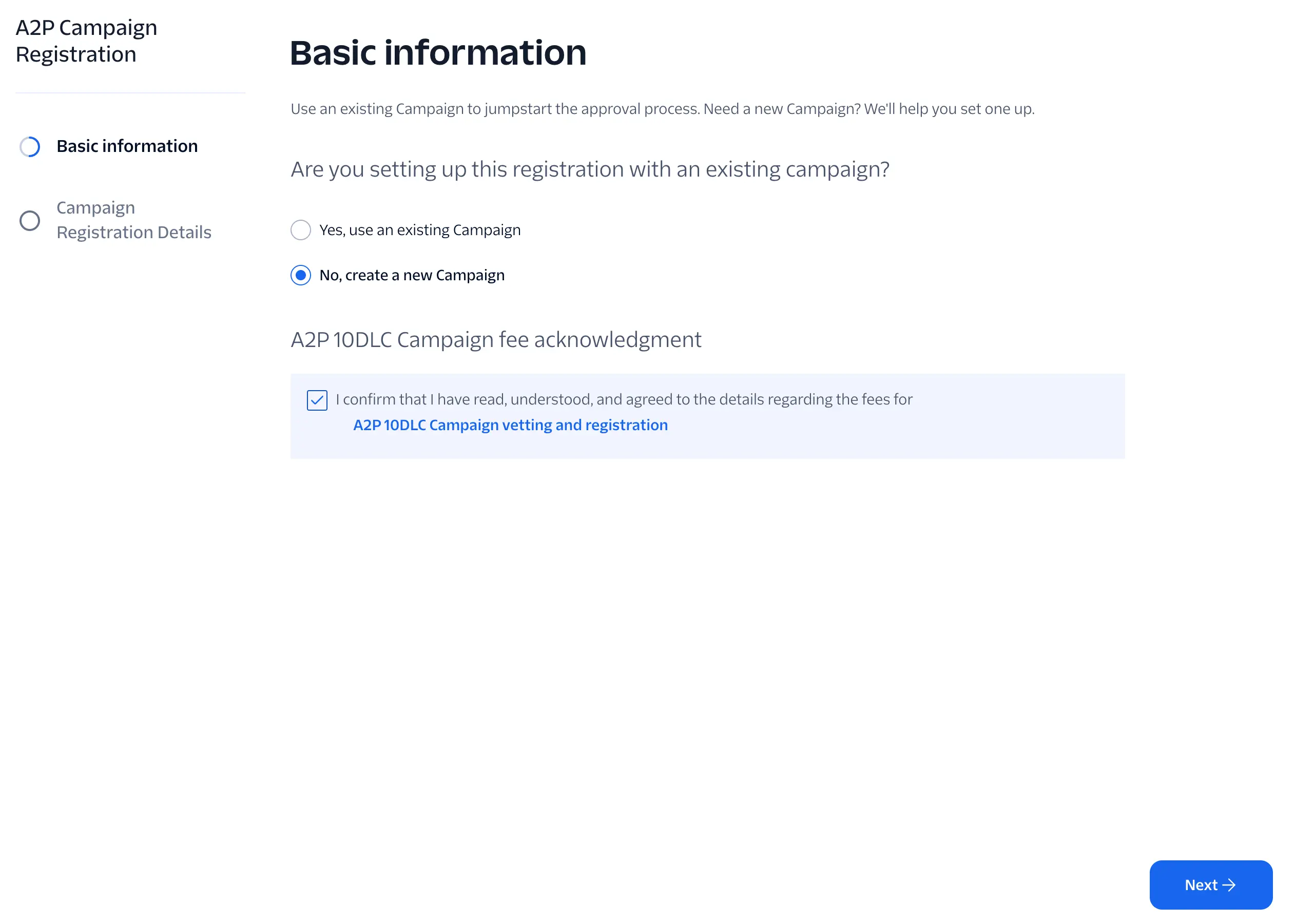
- Are you setting up this registration with an existing campaign?: Select No, create a new Campaign.
- A2P 10DLC Campaign fee acknowledgment: Select the A2P 10DLC Campaign vetting and registration link to review the Campaign vetting fee and the monthly Campaign fee. Then check I confirm that I have read, understood, and agreed to the details regarding the fees.
Select Next.
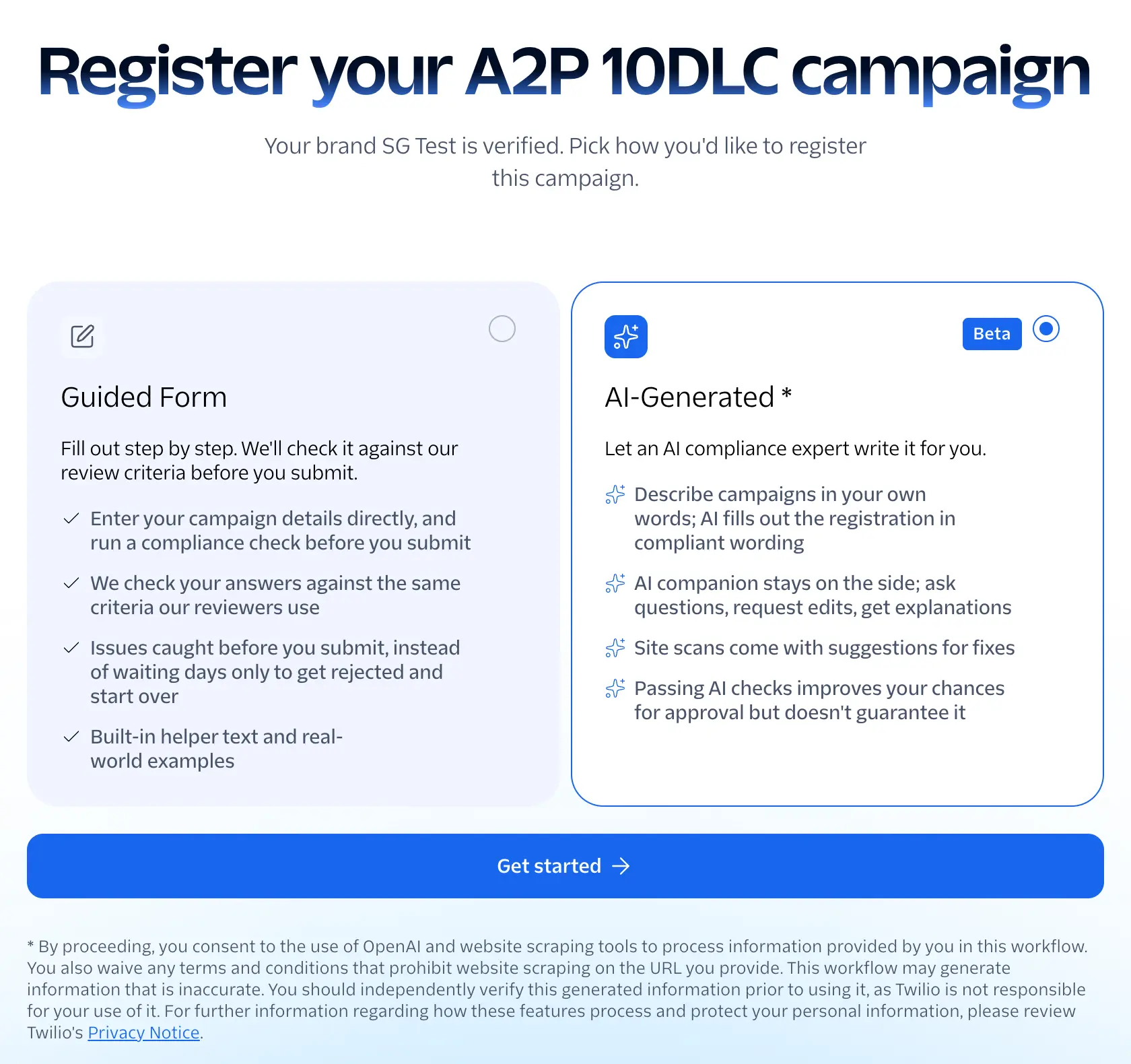
The Register your A2P 10DLC campaign screen offers two ways to fill out the Campaign:
- Guided Form: You enter the Campaign details step by step, and can run a compliance check against Twilio's review criteria before you submit.
- AI-Generated (Beta): You describe the Campaign in your own words, and an AI assistant fills out the registration. This option uses OpenAI and website scanning tools to process the information and website you provide; read the consent notice on the screen before you continue. Always check the generated text before you submit it.
The rest of this guide follows the Guided Form. Select it, then select Get started.
The Guided Form opens with a summary of what you need and how long it takes. Select Start, then complete each screen and select Next.
Use case: Select Sole Proprietor. It's the only use case available for a Sole Proprietor Brand.
Campaign description: Describe the Campaign's objective or purpose in detail. This field matters a lot for approval, because the single Sole Proprietor use case says nothing about what your messages are for. A one-word answer such as "Marketing" isn't enough. A better example: "This campaign sends periodic SMS messages to end customers who have opted in, informing them of product sales, seasonal sales and special discounts." Your description should match the sample messages you provide. If your business uses a DBA (doing business as) name, list both the registered Brand name and the DBA name.
Message flow
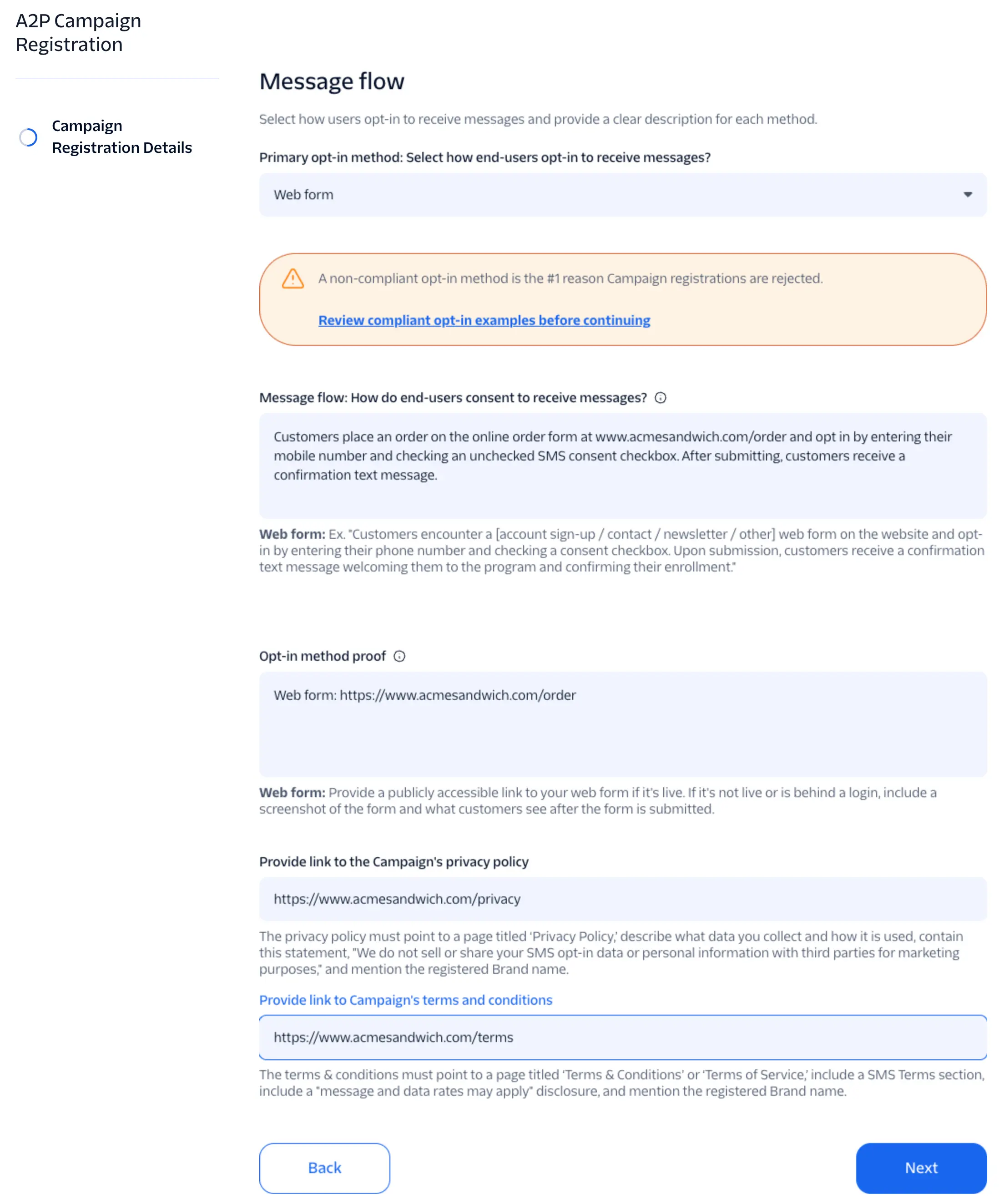
This screen is very important for Campaign approval. Every SMS messaging Campaign needs explicit end-user opt-in, and you can't ask for that consent in an SMS message the user hasn't agreed to receive yet. The form warns that a non-compliant opt-in method is the most common reason Campaign registrations are rejected.
- Primary opt-in method: Select how end users opt in: Web form, Verbal consent, Paper form, Mobile QR code, or Via text (keyword campaign). The form shows an example and guidance for the method you select.
- Message flow: How do end-users consent to receive messages?: Describe each step an end user takes to opt in. For example: Customers place an order on the online order form at www.acmesandwich.com/order and opt in by entering their mobile number and checking an unchecked SMS consent checkbox. After submitting, customers receive a confirmation text message.
- Opt-in method proof: Show reviewers where the opt-in happens. For a web form, provide a public link to the form. If the form isn't live yet or is behind a login, provide a screenshot of the form and of what customers see after they submit it.
- Provide link to the Campaign's privacy policy: The page must be titled "Privacy Policy," describe what data you collect and how it's used, include the statement "We do not sell or share your SMS opt-in data or personal information with third parties for marketing purposes," and mention your registered Brand name.
- Provide link to Campaign's terms and conditions: The page must be titled "Terms & Conditions" or "Terms of Service," include an SMS Terms section with a "message and data rates may apply" disclosure, and mention your registered Brand name.
Sample messages
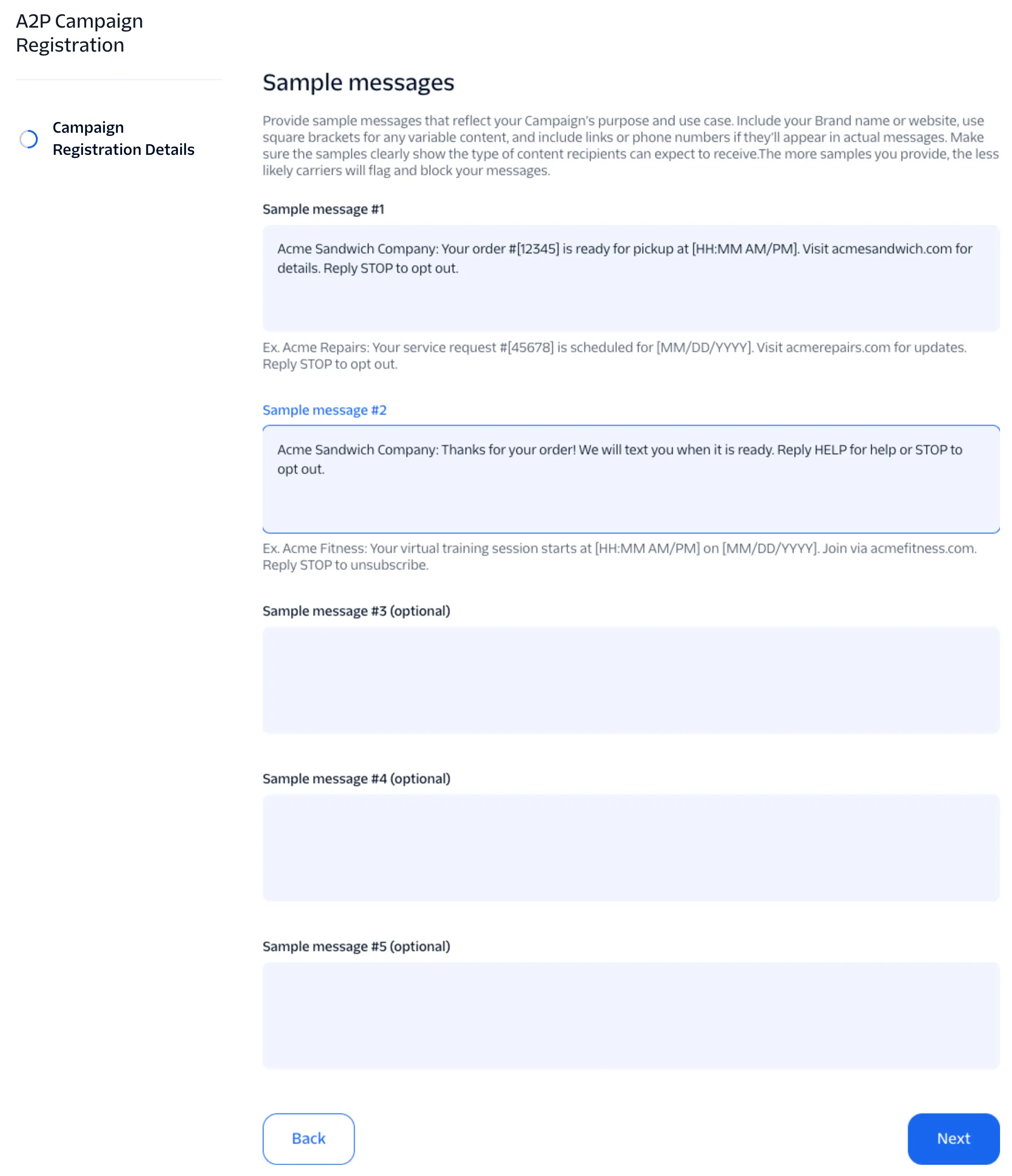
The Campaign Registry requires at least two sample messages. The form has fields for up to five sample messages; only the first two are required, and adding more makes carriers less likely to flag your messages. Include your Brand name or website, use square brackets for variable content, and include any links or phone numbers that will appear in your real messages. If your Campaign only ever sends one message text (for example, One-Time Password messages), you can make the second message a copy of the first. A marketing Campaign, on the other hand, usually has several kinds of messages. For example:
Sample message #1
This is a message from the Acme Sandwich Company (www.acmesandwich.com) about this week's Special Deals. This week, pick up a large [sandwich type A], [sandwich type B], or [sandwich type C] for only [price]. You're currently signed up to receive this information via SMS. To opt-out of these messages, text STOP in reply.
Sample message #2
It's summer at the Acme Sandwich Company (www.acmesandwich.com)! Come in and check out our new cool and tasty ICE CREAM sandwiches, all for [price]! Flavors include [list of flavors]. You're currently signed up to receive this information via SMS. To opt-out of these messages, text STOP in reply.
As part of our compliance review, we run automated checks on any URLs provided during Brand and Campaign registration. Our system captures a public-facing screenshot and evaluates it against compliance rules. This check is a mandatory step in registration. If you have questions or concerns about the process, contact our support team.
These sample messages show some best practices for getting Campaigns approved:
- The sample messages match the Campaign description, in this case periodic marketing messages about specific products and sales.
- The sample messages name the sender's company and website, which clearly match the Brand. This must be a real, functional business website or the Campaign will be rejected.
- Brackets [] mark templated information in both sample messages.
- Both messages include an opt-out method (texting STOP in reply). You describe the opt-in method in the message flow, but it's good practice to include an opt-out path in the sample messages themselves.
Opt-in: If end users can text a keyword (for example, "SUBSCRIBE") to start receiving messages, list those keywords, separated by commas, and enter the auto-reply message they receive. The message should include your Brand name, confirm the enrollment, and give help and opt-out instructions. For example: Acme Sandwich Company: You're now opted-in. For help, reply HELP. To opt-out, reply STOP. If you don't support opt-in by text, leave these fields blank. Twilio then uses the default opt-in keywords START, YES, and UNSTOP.
Message contents: Check each type of content your messages include: Embedded links, Phone numbers, Content related to direct lending or other loan arrangement, or Age-gated content as defined by carrier and CTIA guidelines. In our examples, the website name is an embedded link, so you would check Embedded links. Any embedded link must relate directly to the message's use case. Expect embedded links to be checked closely during approval, because links are a common vector for smishing.
Most Twilio customers use default or advanced opt-out, which handles the STOP and HELP keywords for you. To customize these messages for your Messaging Service, see Advanced Opt-Out.
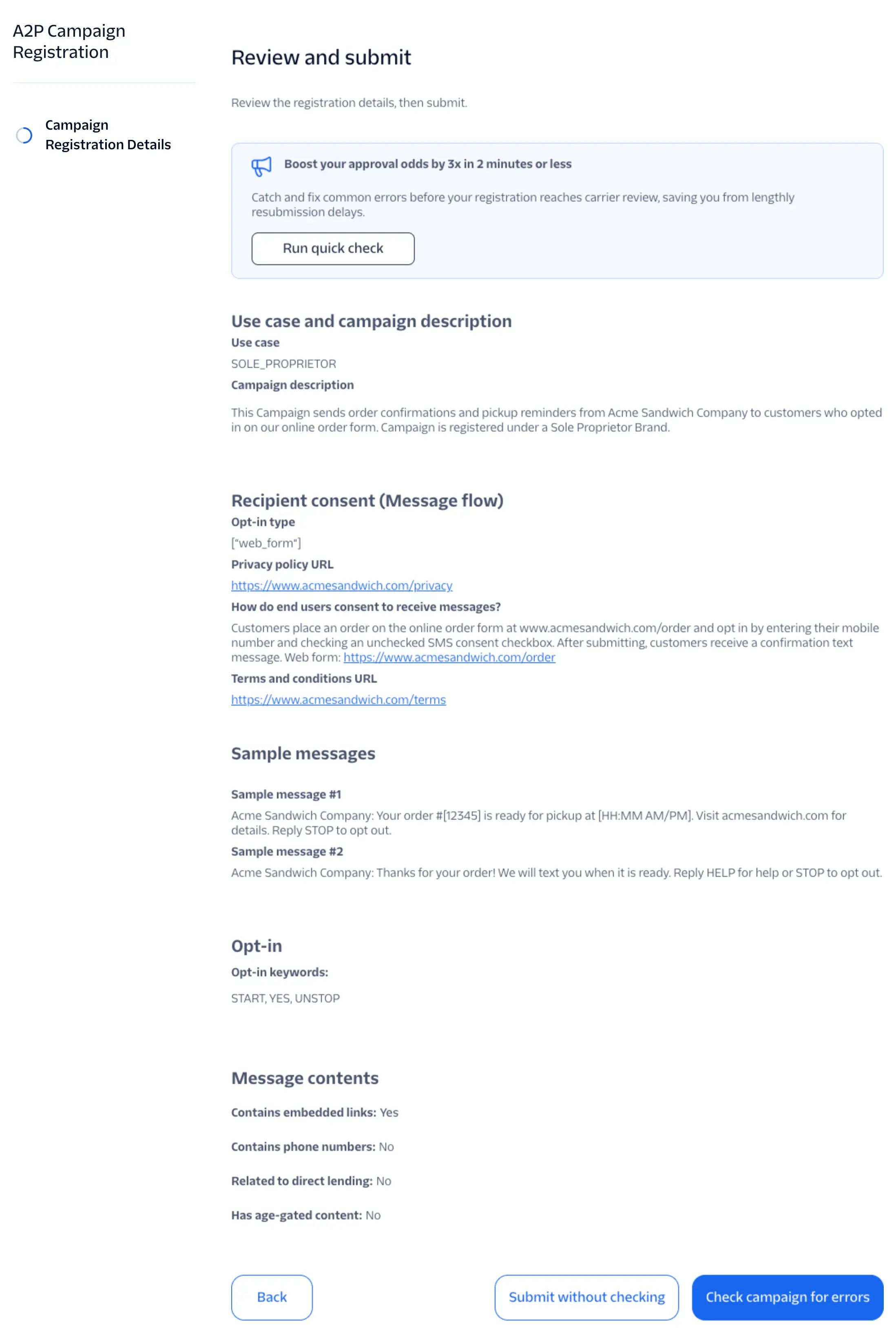
The Review and submit screen summarizes everything you entered. Select Back to change anything. When the details are correct, you have two options at the bottom of the screen. The Run quick check button at the top of the screen runs the same check as Check campaign for errors.
- Check campaign for errors: Twilio checks your Campaign against common rejection reasons so you can fix problems before carrier review. This is the recommended option.
- Submit without checking: Submits the Campaign as entered.
Your Campaign is now submitted for manual review. Come back to your number's checklist to check the Campaign's status. When review is finished, the Campaign is either approved or Rejected.
If your Campaign is rejected, the checklist shows Rejected on the Campaign step, with an Update campaign details button.
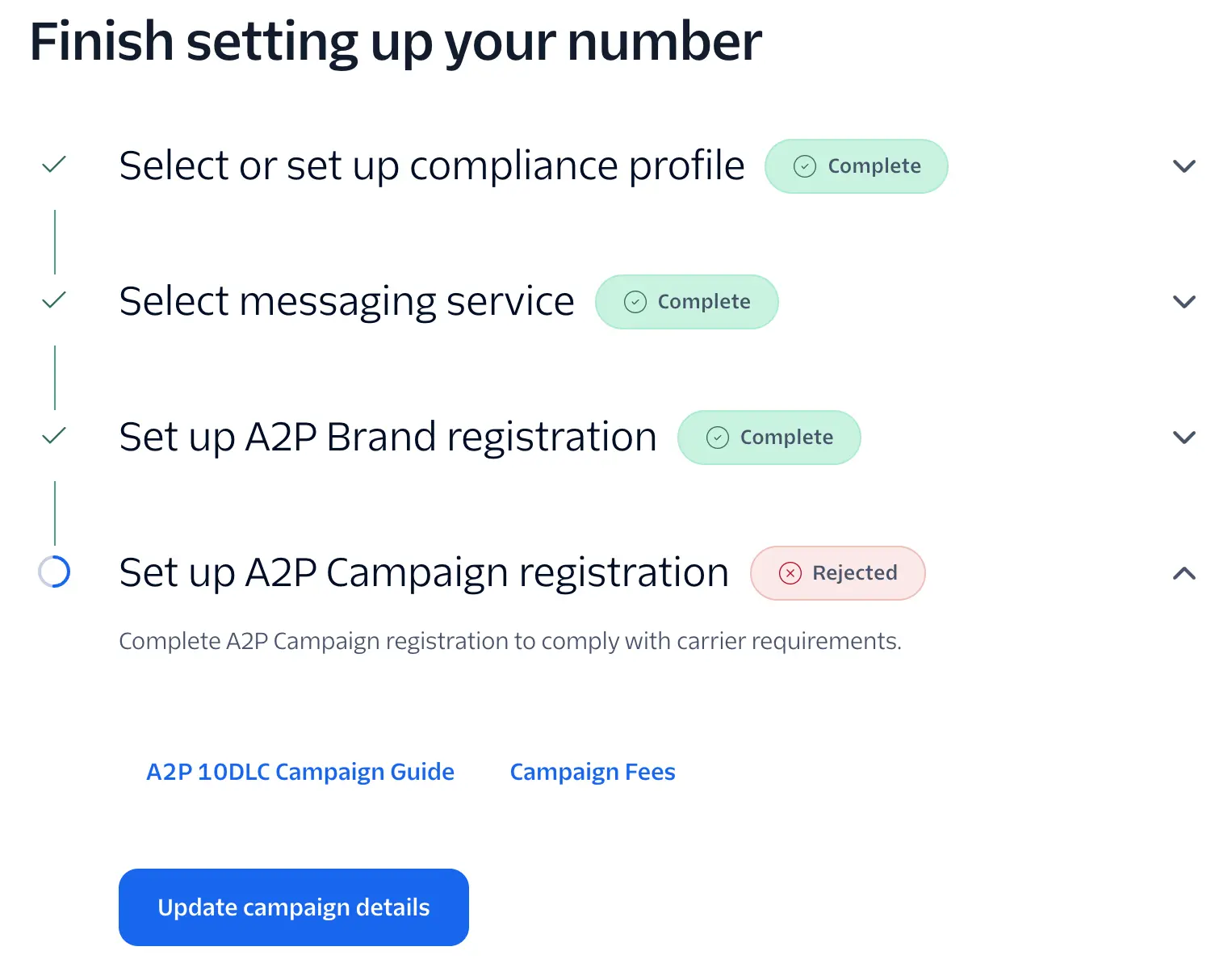
Select Update campaign details to open the Campaign Registration Details form again. The top of the form lists each rejection reason, followed by Revise errors and resubmit your A2P Campaign registration and the fields you entered.
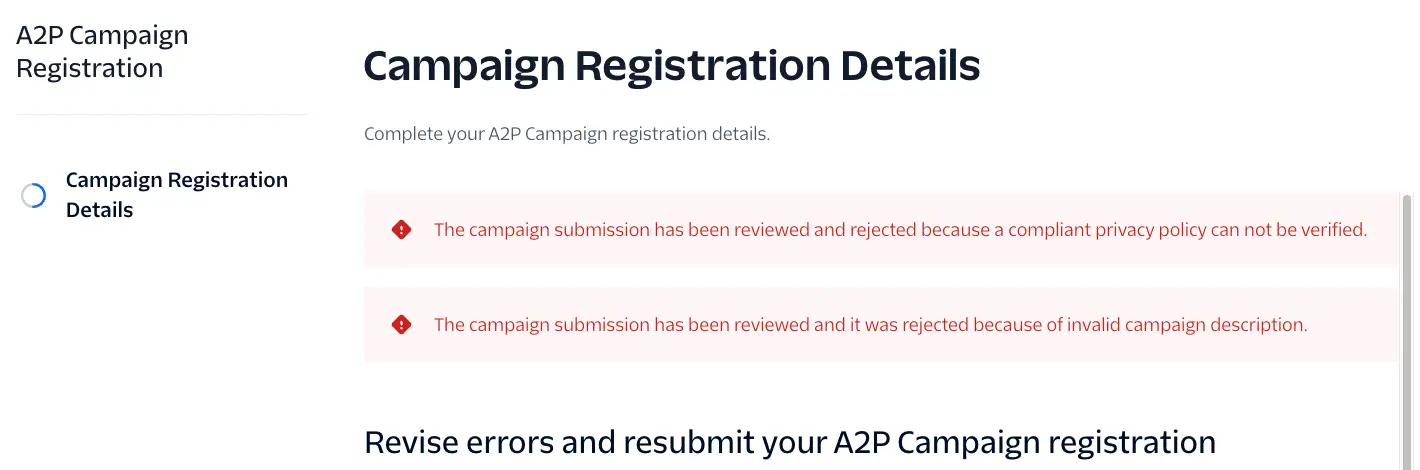
Fix the fields that the rejection reasons name, then submit again. If you see a SUSPENDED status instead, see this section of our Troubleshooting Guide.
Because you started from your phone number's checklist, your number is already in the Campaign's Messaging Service. You don't need to add a sender separately. Once your Campaign is approved, the number shows Messaging enabled in My Inventory, and you can start sending SMS messages to your end users.